For a long Finder copy, keep your MacBook plugged in with its lid open and run caffeinate -i -t 7200 in Terminal. This requests two hours without idle system sleep while allowing the display to turn off. Check that the copy finishes before the timer ends, then eject the drive before unplugging it.
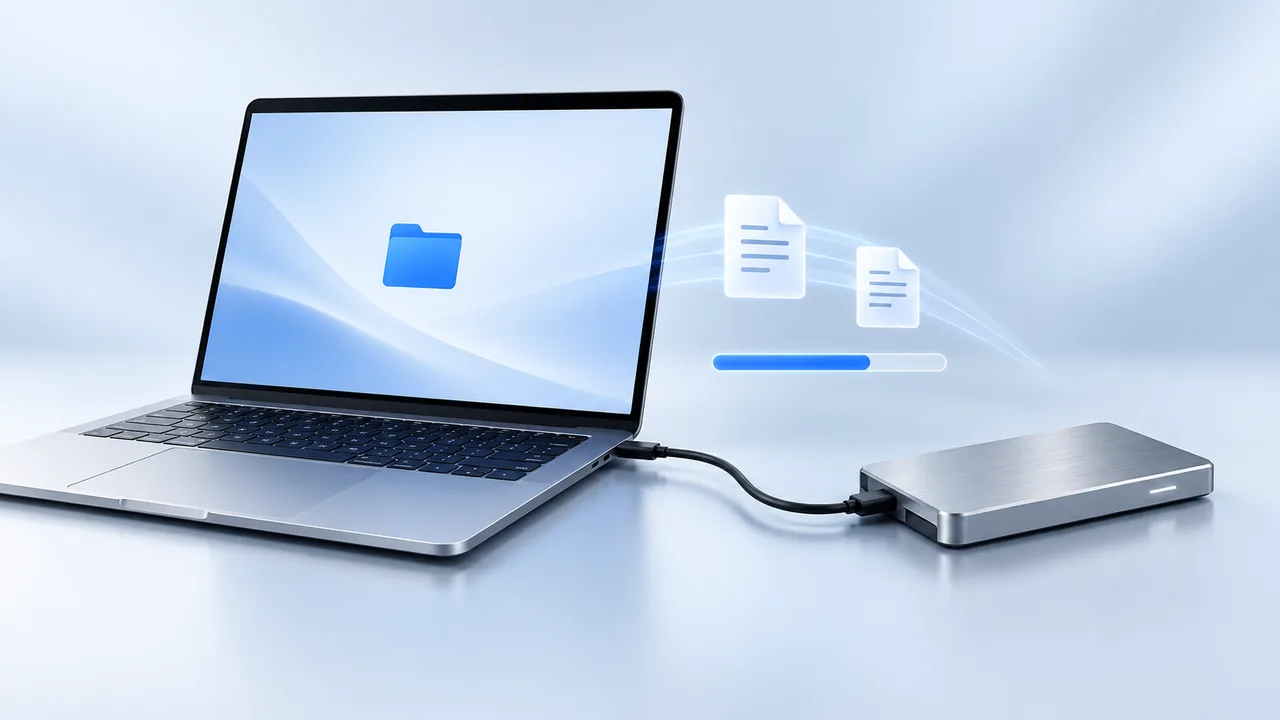
Prepare the drive and start a copy
A folder full of videos, a photo export, or a project archive may take longer to copy than you expect. A dark screen does not prove the copy stopped: display sleep and system sleep are different. For a transfer you need to finish, use a deliberate awake session and check the result.
- Connect the external drive with a suitable cable. Confirm that it appears under Locations in Finder.
- Select the destination drive and choose File → Get Info to check available space. Allow room for the complete copy.
- Use a new, clearly named destination folder, such as Video archive — October 6. This makes a retry easier to distinguish from an earlier partial copy.
- Select the source files in Finder and press Command-C. Open your destination folder and press Command-V. Keep the originals while you verify the result.
Apple’s external-storage guide explains connecting a drive, locating it in Finder, and ejecting it. If Finder reports a permission or disk error, address that message before treating the problem as sleep.
Give the copy a two-hour awake window
Open Terminal with Spotlight and enter:
caffeinate -i -t 7200Leave that command running while Finder copies the files. No progress message from Terminal is normal. The -i option requests protection from idle system sleep; 7200 is a two-hour timeout in seconds. The display can still go dark. To stop your request early, click its Terminal window and press Control-C.
The timer starts when you run the command. It does not watch Finder or know when your copy finishes. If the copy needs more time, start a fresh session before the first one expires. For other durations and command options, use the caffeinate guide and Apple’s command reference.
Keep a MacBook’s lid open and connect power for a long session. An idle-sleep request cannot fix a loose cable, reconnect a drive, or guarantee continued operation after you close the lid or choose Sleep manually.
Example: copying a 60 GB video folder
Suppose Finder estimates 45 minutes for your 60 GB folder. Start the two-hour awake session, then note the copy’s start time, destination folder, and progress. Check again after five minutes to confirm that the transferred amount is increasing.
Return before the two-hour timer ends. If Finder has finished, check the destination as described below. If the estimate has grown, allow more time and investigate unusually slow progress. File count, the drive, cable, and other disk activity can all affect the result; this is an example workflow, not a measured transfer-speed claim.
If you need to step away, keep your normal password protection. Our locked-screen setup explains how to lock the Mac separately from requesting that it remain awake.
For regular transfers, check the power setting
If you often copy large folders while connected to power, a standing preference may be more convenient than a timer. On a Mac laptop, open System Settings → Battery → Options and enable the option that prevents automatic sleep on power when the display is off. Desktop Macs have the corresponding control under System Settings → Energy. Availability depends on the model.
Note the original setting and restore it when you no longer need it. Start with either this preference or the temporary command so you can tell which change helped. Apple’s sleep and wake settings guide documents these controls. Keeping the computer awake uses power even when its display is off.
Verify the copy before removing the drive
- Wait until Finder’s copy progress has finished and resolve any error message. A destination folder existing is not proof that every file arrived.
- Open the destination folder on the external drive. Check the expected files and open a few important ones from that location.
- For one particularly important file, optionally compare its SHA-256 digest with the original using the read-only command below.
- Close files you opened from the drive. Click the eject button beside the drive in Finder and wait for it to disappear before disconnecting it.
shasum -a 256 "/path/to/original/clip.mov" "/Volumes/My SSD/Video archive/clip.mov"Those are example paths: replace both with your actual files. You can type shasum -a 256 , drag the original into Terminal, type a space, and drag in the copy. This lets Terminal handle spaces in the paths. Press Return and compare the long hexadecimal values at the beginning of the two output lines.
Matching values are a strong check that those two files contain the same bytes. They do not verify every file in the folder, its metadata, or the future health of the disk. Hashing large files also takes time. Keep the source until you are satisfied with the whole copy.
If ejecting fails, check whether an app is still using files on the drive. Apple provides steps for a disk that will not eject. Do not unplug it while a copy is still writing.
If the external-drive copy still stops
| What you see | What to check next |
|---|---|
| The screen went dark, but the copy finished | No transfer failure occurred. You do not need to keep the display illuminated. |
| The drive disappears from Finder | Check its cable, connector, hub, and power supply if it uses one. After resolving the connection, retry into a separate folder so the earlier partial copy remains identifiable. |
| Finder says there is not enough space | Check destination capacity. A sleep-prevention command cannot create storage space. |
| A particular file produces an error | Record the exact message. Check whether the source opens and whether that destination accepts the file; do not erase the drive as a first step. |
| The timer ended before the copy | Start another awake session and check Finder’s progress. The timer ending alone does not prove that macOS slept. |
| The copy stalls while the Mac is visibly awake | Investigate disk or connection problems as well as sleep. If possible, compare a small copy with the drive connected directly. |
Keep a short record: source folder, destination folder, cable or hub, power source, start time, awake-session duration, and exact error. Change one variable at a time. For a transfer through a browser instead, use our downloads and uploads guide. For a backup managed by Time Machine, check Time Machine’s completion status rather than treating it as a Finder copy.
What we tested, and where Mouse Jiggler fits
On October 6, 2026, we checked the command behavior on macOS 27.0. A three-second caffeinate -i -t 3 session created its own idle-system-sleep assertion and released it after the timer. A separate session released its assertion when interrupted with SIGINT, the signal normally sent by Control-C. We also copied a 1 MiB temporary file locally and confirmed that shasum -a 256 returned matching digests for the original and copy.
These checks verify the timer, stopping mechanism, and file-comparison command. They are not an external-drive endurance test or a claim that a 60 GB transfer was tested. Try a short copy with your own drive before leaving a larger job unattended.
You do not need automatic clicks or scrolling for a Finder copy. Mouse Jiggler for Mac is useful when you also want recurring cursor movement and visible menu-bar controls. Version 3.4 has a separate Prevent Sleep While Active setting; review its session and stopping conditions before relying on it. For a single background copy, the timed macOS command above is a direct place to start.
Make your next session simpler.
Explore Mouse Jiggler’s menu-bar movement, timing, and scheduling controls.
Download for Mac