For a long Finder copy to a network drive, keep your MacBook on power with its lid open and run caffeinate -i -t 7200 in Terminal for a two-hour awake window. The NAS or other computer must remain available too. A dark display is not proof that copying stopped; check Finder’s progress and the destination files separately.
Check the shared folder before the large copy
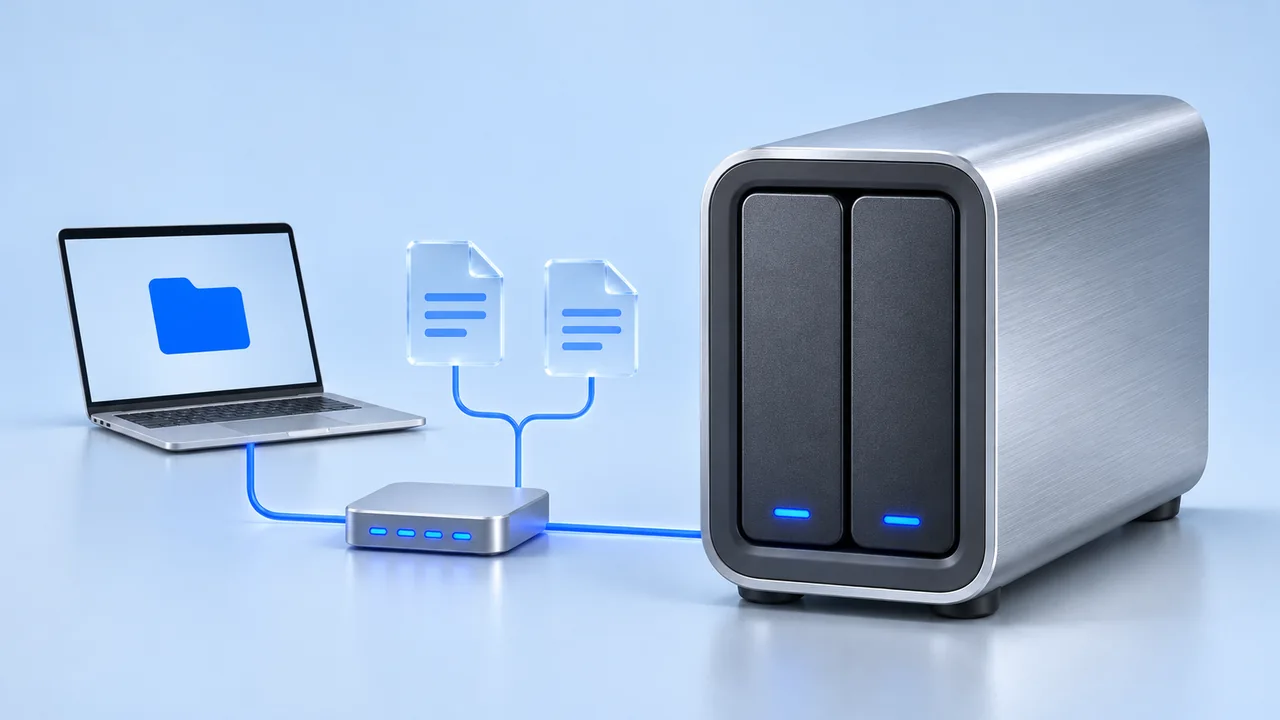
A NAS is network-attached storage: your Mac reaches its shared folders over the network, rather than through a direct USB connection. This guide covers a normal Finder copy over SMB. For a directly attached disk, use the external-drive copy checklist; for a backup managed by Time Machine, use the Time Machine guide.
- In Finder, choose Go → Connect to Server.
- Enter the address supplied by the NAS owner, such as
smb://nas.local/Projects. This is an example: replace the server and share names with yours. - Connect using the account authorized for that share, then open the destination folder.
- Copy one small, disposable file into a new test folder and open that copy from the share. Confirm you can write to the actual destination, not just browse it.
Apple documents Finder’s connection steps, and its server-address reference gives the SMB format. An account that can read a folder may still be unable to add files. Resolve that before starting a large batch.
Start an awake window on the Mac doing the copy
Connect your MacBook to power and leave its lid open. Open Terminal and run:
caffeinate -i -t 7200Keep the command running while Finder copies. This requests protection from idle system sleep for 7,200 seconds; it does not request a continuously lit display. The timer starts immediately and does not watch Finder. If a copy takes longer, the protection can expire before the copy finishes. Press Control-C in that Terminal window to end it early.
For repeated sessions on power, an alternative is System Settings → Battery → Options on a MacBook: enable the option that prevents automatic sleeping on power when the display is off. On a desktop Mac, look in Energy. Apple lists the model-dependent sleep controls. Record the original setting so you can restore it afterward.
Leave password protection in place. For leaving the desk, see the locked-screen workflow. Closing the lid, choosing Sleep manually, losing power, or losing the network are separate interruptions that this timed request does not prevent.
Keep the server and network available too
The command above runs on your Mac. It does not change the NAS, router, or another computer’s sleep settings. Think of the transfer as three separate parts:
| Part | What to confirm |
|---|---|
| Mac running Finder | Power connected, lid open, awake window long enough for the copy. |
| Network path | The Mac remains connected to the network that reaches the share; required VPN access remains available. |
| Destination server | The share is online, the account has write access, and sufficient space or quota remains. |
If another Mac provides the shared folder, check that Mac’s power settings independently. Apple’s connection troubleshooting explicitly includes checking whether a shared Mac is asleep. For a NAS, consult its own administration interface or administrator; disk standby and whole-system shutdown are not the same setting.
Do not change several network and power options at once. A failed copy while you are actively using the Mac points you toward the connection, permissions, destination, or file error first. Repeatedly extending the awake timer does not diagnose those problems.
Try one small batch and record the result
Before leaving a large transfer unattended, make a short trial with files you can safely recopy. Create a fresh destination folder so the result is easy to identify, and keep the original files.
- Start the awake window and record its expected end time.
- Begin copying a small representative folder. Note Finder’s progress and any error message.
- Allow the display to turn off normally while the copy runs. Return before the timer expires and compare progress.
- When Finder finishes, open a destination file from the share and compare the expected contents.
For example, your notes might say: 13:00 — two-hour timer started; 13:02 — test folder copying; 13:12 — Finder finished; destination document opened successfully. This is an illustrative record, not a measured NAS result. If the trial is successful, repeat with a larger batch without changing the connection at the same time.
If you need to confirm the awake request itself, run pmset -g assertions in another Terminal window and look for a caffeinate process owning PreventUserIdleSystemSleep. That entry proves a request exists, not that the NAS is reachable or that bytes arrived. Our assertion-reading guide explains the distinction.
If the copy stops, diagnose the symptom first
| What happened | Next useful check |
|---|---|
| The display went dark but Finder later shows completion | Inspect the destination; display sleep alone did not establish failure. |
| The share vanished or Finder reports disconnection | Check the network and server, then reconnect using the known address. |
| The share opens but a new file cannot be written | Check destination permissions, available space, quota, and the exact error. |
| The Mac stayed awake but the copy stalled | Record the failing file and server state; test a separate small batch before blaming sleep. |
| The timer ended while the copy was still running | Start an appropriate new awake window if needed, then check whether Finder is still making progress. |
After reconnecting, inspect both Finder’s current operation and the destination before starting again. A reappearing folder does not mean an interrupted copy resumed. Avoid launching a second copy of the same batch while the first operation’s state is unclear.
Do not assume a partially populated destination folder is complete. For an uncertain small batch, retry into a new clearly named folder after the original operation has stopped, then compare the results. Keep source files until verification is complete. This procedure does not promise automatic resume of every Finder or SMB failure.
Verify important files before deleting originals
Wait for Finder to finish without an unresolved error. Check the destination’s expected file names and sizes, and open representative files from the share. For a particularly important individual file, compare its content checksum while neither copy is being modified.
In Terminal, type shasum -a 256 followed by a space, drag the original file into the window to insert its path, and press Return. Repeat for the copied file on the mounted share. A fully typed example looks like this; replace both paths:
shasum -a 256 "/Users/you/Documents/example.zip"
shasum -a 256 "/Volumes/Projects/example.zip"
Compare the long hexadecimal value at the start of each line. A match is strong evidence that those two files have identical contents. It does not verify every other file in the folder, folder permissions, or the long-term health of the NAS. Reading a large destination file for hashing also takes time and network traffic.
Only after checking the result should you stop the temporary awake session or restore a changed power setting. Eject the mounted share in Finder when you are finished using it. Copy completion and backup protection are separate decisions; keep whatever independent backup your files need.
Where Mouse Jiggler fits, and what we checked
Mouse Jiggler for Mac offers menu-bar session controls and a separate Prevent Sleep While Active setting. For recurring supervised transfers, review the schedule, end time, and stopping conditions in the session-settings walkthrough. Leave automatic clicks, scrolling, and key presses off when the task only needs an awake window. The app does not manage SMB permissions, keep the NAS awake remotely, resume a broken copy, or verify files.
On November 9, 2026, we checked a four-second caffeinate timer on macOS 27.0.1: its idle-sleep assertion appeared and was released at the end. We also copied an 8 MiB disposable file locally and confirmed matching SHA-256 results with the command above. These were local command checks, not an SMB/NAS transfer test, a locked-screen trial, or a long unattended copy. The cover is an editorial illustration.
For the optional menu-bar approach, download Mouse Jiggler on the Mac App Store and test a short session before leaving a large copy unattended. Keep the server and file-verification checks separate.
Finish by checking the files on the share.
Confirm the copy result before stopping the awake window. For a different duration or a command-scoped task, use the caffeinate reference.
Review awake timers and stoppingView Mouse Jiggler on the Mac App Store · Free to download, with optional PRO features.