You can lock your Mac and separately request that it stay awake for a background task. For a 30-minute session, run caffeinate -i -t 1800, then choose Apple menu → Lock Screen. Keep a MacBook’s lid open, leave the command running, and check the task’s result when you return.
Set up a 30-minute locked session
- Connect your MacBook to power if practical and leave its lid open. Start the download, export, or other task you want to finish.
- Open Terminal with Spotlight and enter:
caffeinate -i -t 1800- Leave that Terminal window open. A quiet window with no progress message is normal.
- Choose Apple menu → Lock Screen, or press Control-Command-Q. Use Lock Screen rather than Sleep or Log Out.
- When you return, unlock your Mac and check the task itself. To end the awake request early, return to its Terminal window and press Control-C.
The timer starts when you run the command, not when you lock the screen. 1800 means 30 minutes; use 3600 for an hour. The -i flag requests protection from idle system sleep without requesting an illuminated display. It does not change your password requirement. Apple documents Control-Command-Q as the screen-lock shortcut.
Check the request before locking
Keep the first Terminal window running. Open a second tab or window and run:
pmset -g assertionsFind a process named caffeinate with an assertion type of PreventUserIdleSystemSleep. Other applications may also appear. You are checking the request belonging to your command, rather than assuming that a system-wide total came from it.
After the timer expires or you stop that command, run the check again. Its assertion should disappear. Another app may still prevent sleep; stopping your command does not stop other apps. The guide to finding what keeps a Mac awake explains how to investigate those separately.
Can the display turn off while the Mac is locked?
Yes: the intended setup is a protected desktop with a background task still running, not a permanently illuminated lock screen. A black display alone cannot tell you whether the task continued. See the difference between display sleep, system sleep, and screen lock if those states are easy to confuse.
For a recurring session on power, Apple lists a sleep-prevention option under System Settings → Battery → Options on Mac laptops. Enable Prevent automatic sleeping on power adapter when the display is off. Desktop Macs have the corresponding control under System Settings → Energy. Availability varies by model. Note your original setting and restore it when the arrangement is no longer needed.
Apple’s sleep settings guide covers these controls. Use either a temporary command or the appropriate preference first, so you can tell which change affects your result. Keeping a Mac awake still consumes power even with a dark display.
Example: leave a download running while you step away
Suppose a download reports about 12 minutes remaining and you expect to be away for 20 minutes. A 30-minute awake request gives the transfer some extra time, but it is still a fixed timer: it does not know when the download finishes.
Before locking, note the downloaded amount and time. Leave the browser and Terminal running, lock the screen, and return before the timer ends for the first trial. Look for the browser’s completed-download state and the resulting file. If the download is still running, compare its progress with your note before deciding whether sleep was involved.
If the timer ends first, normal idle-sleep rules can resume. If the connection fails, keeping the Mac awake cannot repair it. Our download settings and recovery guide covers interrupted transfers. This is a suggested comparison procedure, not a claim that every download service continues under every lock or power policy.
What we checked for this guide
On September 28, 2026, we checked the installed caffeinate manual and ran two short command tests on macOS 27.0:
caffeinate -i -t 3created its own idle-system-sleep assertion, exited normally after about three seconds, and released that assertion.- A second timed invocation released its assertion when interrupted with SIGINT, the signal normally sent by Control-C in Terminal.
We checked only the assertion created by each test process. These tests verify the timer and stopping mechanism; they do not verify a locked-screen download, closed-lid operation, or behavior on every Mac. Use the short trial above with your actual app before relying on a longer session. For all flags and command-scoped sessions, use our full caffeinate guide or run man caffeinate on your own Mac.
How Mouse Jiggler’s screen-lock setting fits
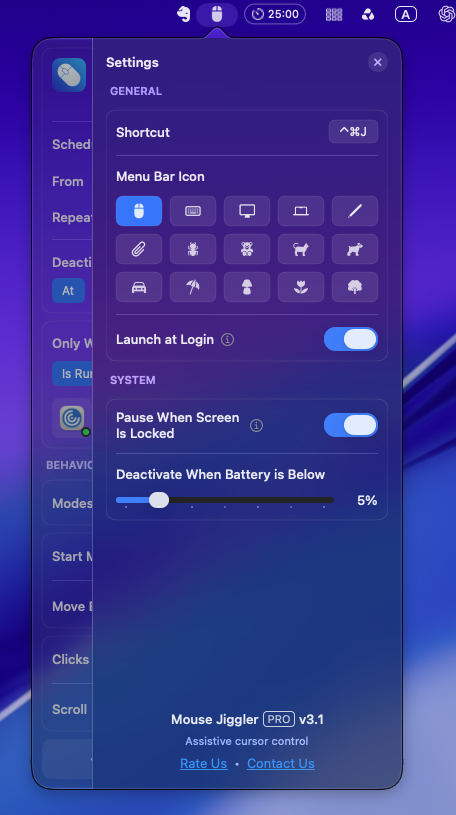
Mouse Jiggler for Mac is useful for deliberate cursor-movement sessions and recurring schedules. Its screen-lock pause control is a separate app setting. The screenshot shows that control enabled; it is not evidence that a particular background transfer was tested.
For a job that only needs the system awake behind a locked screen, start with the timed sleep request above. You do not need to remove your lock requirement or add automatic clicks to that workflow. If you want visible cursor movement while working, use the mouse mover controls guide to configure that separate session.
If work still stops after you lock the screen
| What you observe | Check next |
|---|---|
| The screen is black, but the task finished | The dark display was not a failure. Keep your normal lock protection. |
| Your caffeinate assertion has disappeared | Check whether the timer expired or the command was stopped. Run a fresh short test. |
| The assertion remains, but the task reports an error | Record the app’s error and check its connection, destination and sign-in state. |
| The interruption follows closing the lid | Repeat with the lid open. A request against idle sleep is not a general closed-lid override. |
| A setting is unavailable or controlled by your organization | Check with the administrator instead of changing managed security requirements. |
Change one variable per trial. Keep a note of the power source, command start time, lock time, task progress and result. That separates a timer ending from a network failure or an app-specific restriction. When finished, stop your temporary request and restore any preference you changed.
Make your next session simpler.
Explore Mouse Jiggler’s menu-bar movement, timing, and scheduling controls.
Download for Mac