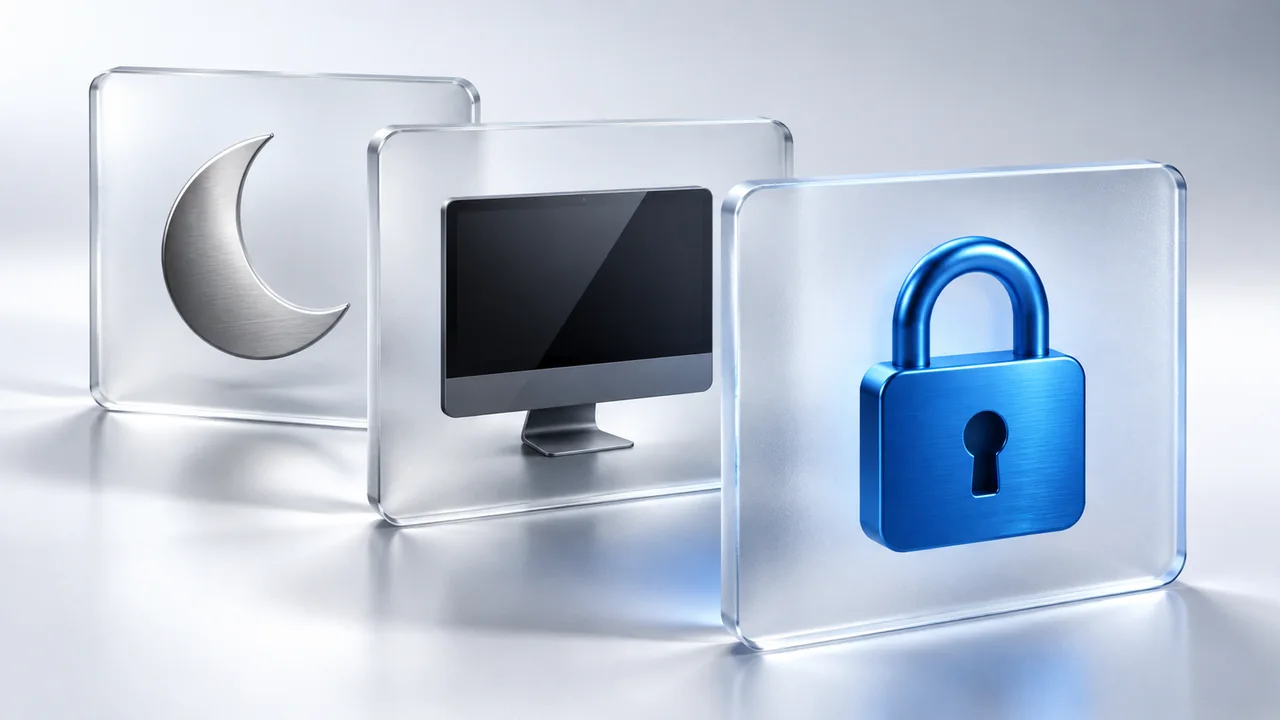
Display sleep turns off the screen. System sleep puts the Mac into a lower-power state. Screen lock protects access to your session. Identify which one affects your task before changing settings.
Three states that can look similar
You return to a black screen, move the mouse, and see a password prompt. That sequence alone does not tell you whether an upload stopped or the computer spent the whole time asleep. The display, the running system, and access to your desktop are related but separate concerns.
| State | What changes | Question to ask |
|---|---|---|
| Display sleep | The screen stops showing an illuminated picture. | Do I need to keep seeing this information? |
| System sleep | The Mac enters a reduced-power state. | Does an ordinary background task need to keep running? |
| Screen lock | Access to the session requires unlocking. | Should someone nearby be able to use this desktop? |
Some supported background services can operate or wake briefly during sleep. That is different from assuming any browser upload or application job will continue normally.
A running task may not need a bright screen
For an export or transfer, define success as the job finishing. Keeping the display illuminated is only useful if you need to watch it. On supported Mac laptops, the power-adapter options in System Settings → Battery → Options can keep the system active while the display is off. Available controls depend on the model and macOS version.
For a temporary session, caffeinate separates an idle-system request (-i) from a display request (-d). Choose the request that matches the task, and give it an end time.
A password prompt is an access setting
In current macOS versions, Lock Screen settings include the delay before a password is required after the screen saver starts or the display turns off. A request to unlock does not prove that a background job failed.
Keep your usual lock requirement and check the job itself when you return. For example, confirm that the exported file exists or that a transfer reports completion. Removing a password requirement does not solve network failures or make a transfer application more reliable.
For a timed session behind the lock screen, follow the locked-Mac caffeinate setup, including the assertion check and a short download trial.
Run a short test before a long session
- Choose a small representative task, such as a short export.
- Record the power source and the display timeout.
- Apply one timed awake method and leave the MacBook lid open.
- Let the display follow its normal timeout if the task does not need it.
- Return, unlock, and inspect the task’s result.
If the screen becomes dark while the task completes, you have separated a display event from a work interruption. If the task fails, keep its error message and investigate that specific failure before changing another setting.
Where Mouse Jiggler fits
Mouse Jiggler adds cursor activity with configurable timing. Its Settings also include a pause when the screen is locked, so review that control when designing a session. Cursor activity and an explicit system-sleep request are different mechanisms.
For a visible dashboard, test whether your chosen delay keeps the view available. For an unattended job with the screen off, a timed system-sleep request may be a better match. Our three-method comparison helps you choose.
Connecting to a second Mac? Use the Screen Sharing awake-session checklist to identify the host, set its sleep protection, and test reconnection.
For configurable cursor movement and menu-bar session controls, download Mouse Jiggler on the Mac App Store. Review sleep prevention and screen-lock pausing separately, then test the outcome your task needs.
Match the awake method to the task.
Choose between macOS settings, a temporary command, and menu-bar controls once you know which type of sleep affects your work.
Compare the three approachesView Mouse Jiggler on the Mac App Store · Free to download, with optional PRO features.