
Amphetamine is a strong free choice for keeping a Mac awake with timers and automatic triggers. Mouse Jiggler suits a recurring cursor routine where you want movement range, timing, weekday hours, and stopping controls together. Both can move the pointer; choose by the setup you need to repeat.
What are you trying to keep active?
A download needs the computer to stay awake. Reading a dashboard may also call for a visible display. A cursor routine adds a third requirement: deciding how and when the pointer moves. Write down which of these you need before comparing switches.
We make Mouse Jiggler. This comparison draws on Amphetamine’s developer documentation and our app’s documented controls, reviewed on November 19, 2026. It is not a battery, performance, or reliability benchmark.
Compare the controls you will actually use
| Need | Amphetamine | Mouse Jiggler for Mac |
|---|---|---|
| A temporary awake session | Timed sessions and sessions tied to an app or a download. | Deactivate controls for an end time or duration; separate Prevent Sleep While Active setting. |
| Automatic activation | Triggers for conditions such as apps, power, connected devices, and schedules. | Weekday Schedule and Only While App conditions alongside movement timing. |
| Pointer movement | Optional periodic cursor movement. | Natural and Silent modes, Movement Range, idle delay, and repeat interval. |
| Cost | Free, with no in-app purchases listed. | Free download with optional PRO features. |
Some Mouse Jiggler controls shown here require PRO. Check the current Mac App Store listing and the app before paying for a particular feature. Amphetamine is a capable option even when cursor movement is part of your task.
When Amphetamine is the better fit
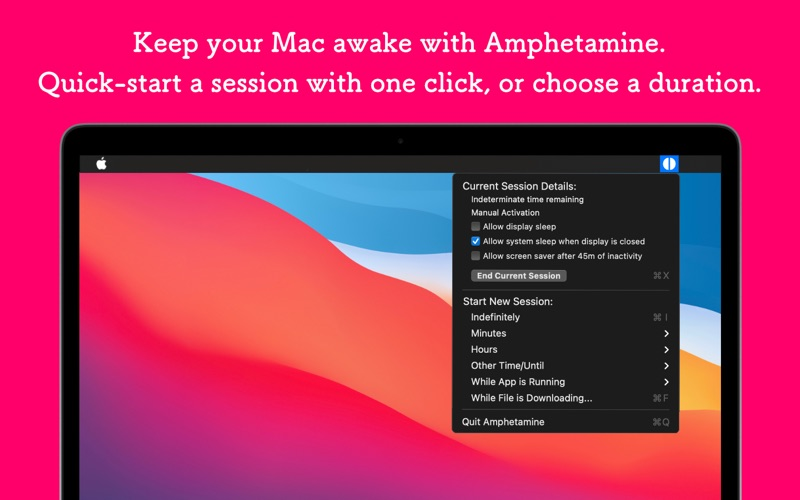
If the main job is keeping the Mac awake during a download or while an app runs, start with Amphetamine. Its awake-session menu and range of triggers are useful when power state or connected equipment should decide whether a session runs.
For example, write a requirement such as “stay awake while this drive is connected.” Compare that requirement with the available triggers before introducing cursor movement. A moving pointer is not necessary for every background task.
When Mouse Jiggler fits the daily routine
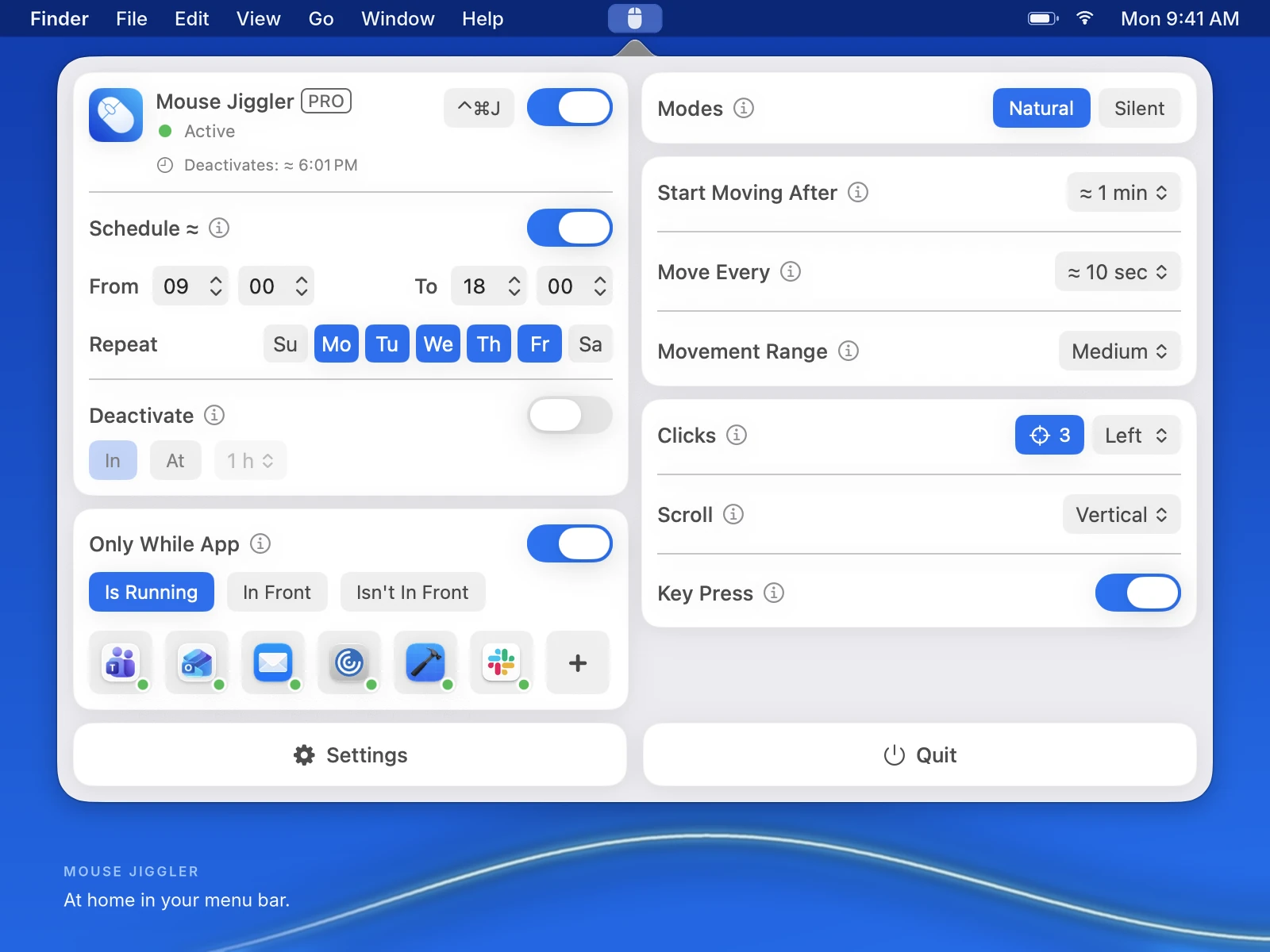
Mouse Jiggler is worth trying when you regularly adjust the movement itself: how far the pointer travels, how long the app waits after your last input, and how often it moves. Its menu-bar panel puts those choices beside the weekday schedule and stopping controls.
For a recurring reference-reading session, you might want weekday hours, a delay before movement begins, and a definite end time. The benefit is having that routine saved where you also adjust the pointer. Start with the installation checklist, then add one condition at a time.
Download Mouse Jiggler on the Mac App Store. Free to download, with optional PRO features.
Try a short session before saving a weekday schedule
- Quit the other awake utility for the trial, so its settings do not affect the result.
- In Mouse Jiggler, start with Schedule and app conditions off. Choose a short idle delay and leave optional clicks and scrolling disabled.
- Wait longer than the chosen delay without touching the mouse or keyboard. Observe the movement range and interval.
- Set a short Deactivate duration, or use the main switch to stop. Confirm that movement ends.
- If the task also needs sleep prevention, review Settings → System → Prevent Sleep While Active. Then test with your usual power and screen-lock settings.
- Once the short trial works, save the intended weekday hours and test the selected app condition separately.
This is a suggested trial for your Mac, not a report of a head-to-head test. The schedule guide explains how the time window and idle delay work together.
Check the result that matters to you
Record whether the file finished, the display stayed visible, or the pointer stopped at the intended time. A chat status indicator is a different outcome: it can depend on the meeting app, account, calendar, and other devices. Neither app can guarantee how every service reports your presence.
Choose Amphetamine when its awake sessions and triggers already cover the job. Choose Mouse Jiggler when the recurring task revolves around movement controls and a saved routine. For a broader comparison, see seven Mac keep-awake options.
Choose the setup you want to repeat.
If movement timing and saved weekday hours are what you need, try Mouse Jiggler on your Mac.