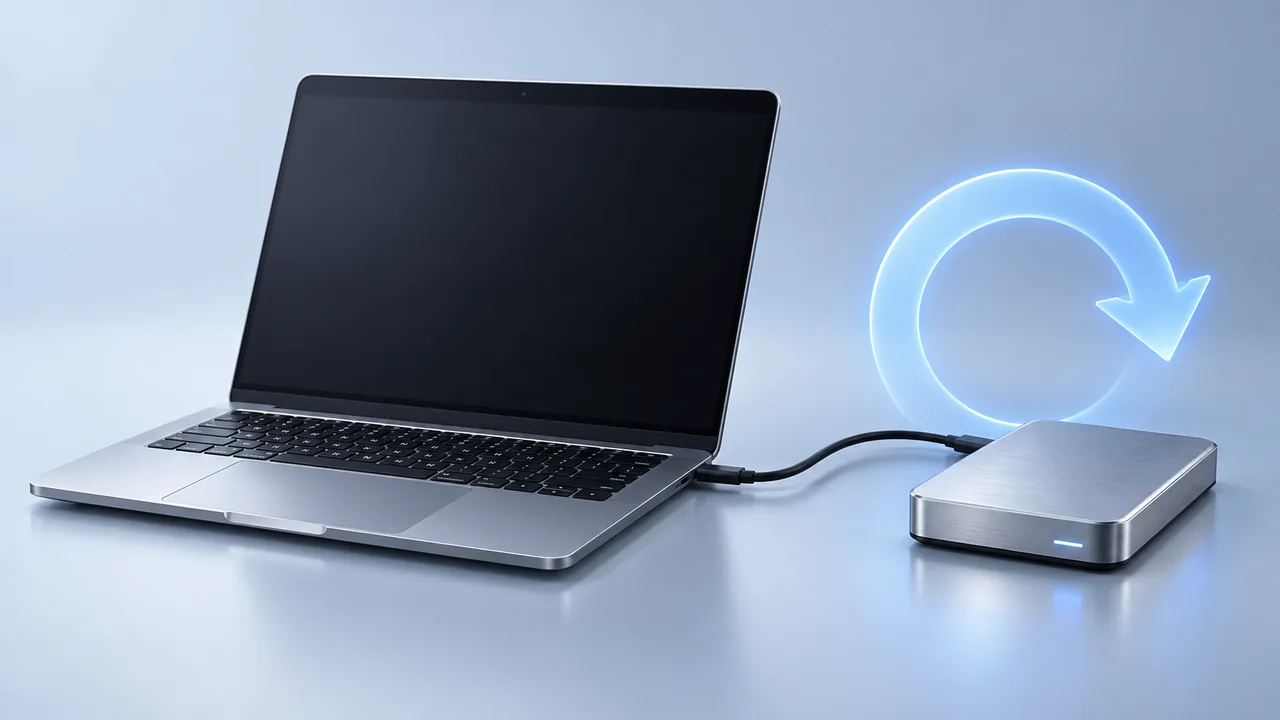
Time Machine can back up during sleep on supported Macs, but the result depends on power, settings, and access to the backup disk. A dark display alone does not mean your Mac has stopped working. For a first or interrupted backup, try a session on power with the lid open, then check the latest completed backup time.
A dark display and a sleeping Mac are different
If your screen turns off during a backup, wake the display and check Time Machine before changing settings. The computer may have continued working in the background. Our guide to display sleep, system sleep, and screen lock explains the distinction.
On compatible Intel Macs, Apple documents Power Nap as a way to perform Time Machine backups during sleep while connected to a power adapter. The Power Nap setting is available only on Intel models. A missing switch on an Apple silicon Mac is not, by itself, a backup failure.
Rather than assuming every Mac and disk combination behaves identically, check whether a new backup completed during the period in question. For a network disk, the destination also needs to remain reachable.
Check whether the backup actually finished
- Open System Settings → General → Time Machine and confirm the intended backup destination is configured.
- From the Time Machine menu in the menu bar, choose Back Up Now when you want to start a manual run.
- Use that menu to watch progress and check the timestamp of the latest completed backup. If the icon is hidden, enable Time Machine in Menu Bar or Control Center settings, depending on your macOS version.
A spinning drive or a lit screen is not proof of completion. Use the completion timestamp as your first check. Apple shows the progress and completion states in its Time Machine walkthrough.
Keep your Mac awake for a backup on power
For a practical comparison run, keep a MacBook connected to power with its lid open. Leave your usual screen-lock protection enabled.
- Mac laptop: open System Settings → Battery → Options and enable the setting that prevents automatic sleep on power while the display is off.
- Mac desktop: look in System Settings → Energy for the equivalent control.
You can still let the display turn off. These options vary by model; Apple’s sleep settings guide lists the available controls. Restore any temporary change after your comparison run.
For example, start a manual backup before dinner, note its starting progress, and check the latest backup time when you return. If it finishes while the display is dark, you do not need to keep the screen illuminated for that setup.
Use a timer for a one-off awake session
If you prefer a temporary session instead of changing a preference, open Terminal and run:
caffeinate -i -t 7200This requests two hours without idle system sleep. It does not request that the display stay on. Keep the Terminal process running; press Control-C in that window to end it early. The caffeinate guide explains the flags and shorter timers.
The timer is independent of Time Machine: it can expire before a large backup finishes. It also does not override closing the lid, a manual sleep command, a disconnected disk, or a failed network connection. Check backup completion separately.
If Time Machine still pauses or fails
| What you observe | Useful next check |
|---|---|
| The display goes dark, but the completion time advances | The backup completed; screen illumination was unnecessary. |
| The backup destination disappears | Check the disk connection, cable, hub, or network destination. |
| Progress stops even with the Mac awake | Record the exact Time Machine message; sleep may not be the cause. |
| Only the first backup takes a long time | Allow for the larger initial copy before comparing later runs. |
Change one variable per attempt. For example, compare two runs using the same disk and cable, changing only the temporary awake setting. Record the start time, power source, error text, and latest completed backup time. This gives you a reproducible observation instead of a guess based on screen brightness.
If the destination is an external disk, eject it before unplugging it. Do not erase a backup disk as a first response to an interrupted run.
Do you need Mouse Jiggler for Time Machine?
You do not need a mouse jiggler simply to use Time Machine. Start with the backup and power controls above. A cursor-movement app cannot repair a backup disk or guarantee that a backup is complete.
Mouse Jiggler for Mac can be useful when you also want a visible reference screen or a recurring awake session while supervising work. Its schedule and stopping controls manage the app’s session, independently of backup progress. For a background backup with the display off, the system setting or timed command is usually a closer fit.
caffeinate(8) manual. Read it on your Mac with man caffeinate.Make your next session simpler.
Explore Mouse Jiggler’s menu-bar movement, timing, and scheduling controls.
Download for Mac