
Mouse Jiggler is an alternative to Stick Software’s Jiggler if you want movement controls, weekday schedules, app conditions, and a stop time in one menu-bar panel. If you only need to prevent sleep, consider Amphetamine or macOS caffeinate. First identify what your current Jiggler setup is missing.
Which Jiggler are you replacing?
Jiggler by Stick Software and Mouse Jiggler for Mac are separate products. This guide is about replacing the Stick Software app, rather than a USB device or a browser page.
Jiggler remains a free, open-source option. The maintainer lists version 1.10 with a macOS Tahoe compatibility fix for Zen jiggle. It also documents idle and app-running conditions. An old-looking website alone is not a reason to assume the app has stopped receiving updates.
We publish Mouse Jiggler. The options below are based on the maintainers’ documentation and our app’s controls, checked on November 19, 2026; we have not run a comparative endurance test.

Choose a replacement for the missing control
| Your requirement | A useful next step |
|---|---|
| Simple free pointer movement | Check the current Jiggler version and settings first. You may not need to switch. |
| An occasional task without sleep | Use a timed caffeinate command, or compare Amphetamine’s awake sessions. |
| Movement settings beside weekday hours and stop controls | Try Mouse Jiggler’s menu-bar panel and check which controls require PRO. |
| Movement stopped after changing Macs | Check input permission and the installed app version before choosing another utility. |
For the awake-session option, read Amphetamine vs Mouse Jiggler. For a built-in timer, the caffeinate guide covers the commands and how to stop them.
What to try in Mouse Jiggler
The useful question is whether the controls match the routine you want. Mouse Jiggler offers Movement Range, a delay before movement begins, a repeat interval, and Natural or Silent mode. Schedule, Only While App, and Deactivate let you define when that routine applies and when it ends.
Suppose you read a reference on the Mac during a regular afternoon work block. You want movement only after you stop using the pointer, within the chosen weekday hours, and with a clear stop control. Build that setup in stages rather than copying every old setting at once.
The app is free to download and includes optional PRO features. Review the available controls before purchasing. Our movement guide explains the differences between movement, clicks, and scrolling.
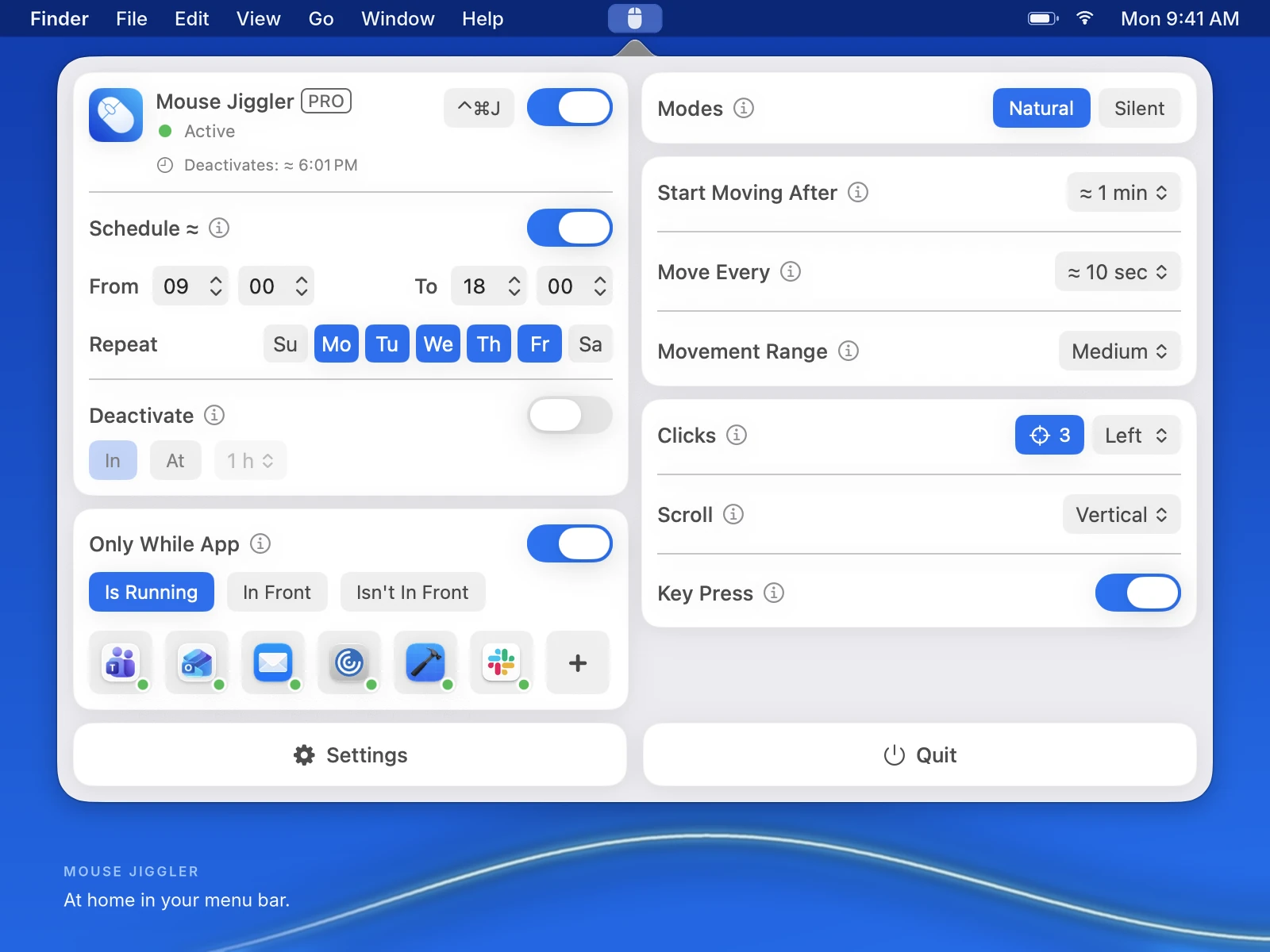
Download Mouse Jiggler on the Mac App Store. Free to download, with optional PRO features.
Move the routine in four steps
- Note the old behavior. Record the idle delay, movement interval, app condition, and how you stop Jiggler. Keep a screenshot of its settings if useful.
- Quit Jiggler for the trial. Leave only the replacement active, so a second utility cannot hide a missed stop or an unexpected sleep setting.
- Install and allow input access. Open Mouse Jiggler from its Mac App Store listing, then follow the macOS permission guide. Initially leave schedules, app conditions, clicks, and scrolling off.
- Rebuild one condition at a time. Confirm basic movement, test stopping, then add the weekday schedule and app condition you actually need.
These are setup steps, not an automatic settings import. An interval with the same number can behave differently when an app measures idle time or pauses on user input differently.
Use a ten-minute acceptance check
Try the new setup while you are at the Mac. Allow for the idle delay you chose and observe at least one movement cycle. If the delay is longer than ten minutes, shorten it for this trial and restore it afterwards.
- Start: does movement begin after the intended idle delay?
- Range: is the movement comfortable at your usual display size?
- Stop: does the main switch stop movement, and does your chosen Deactivate condition end the session?
- App rule: when enabled, does switching to another app produce the behavior you intended?
- Sleep: if this matters, check Prevent Sleep While Active separately and repeat the relevant part with your normal lock and power settings.
If a check fails, record which one. The troubleshooting guide separates permission, timing, and session-condition problems. Once the replacement works for your routine, disable the old utility’s automatic launch if it was enabled.
Keep the switch tied to a real benefit
A replacement earns its place when it makes a recurring task easier to configure or stop. Staying with Jiggler is reasonable if its current version already does what you need. Mouse Jiggler is worth a short trial when its movement panel and saved schedule address the gap you identified.
For other approaches, including hardware and sleep-only tools, see the full Mac alternatives comparison.
Try the replacement on your Mac.
Check basic movement and stopping first, then save the routine you want to keep.