A mouse mover for Mac changes the pointer’s position automatically. Mouse Jiggler does this from a menu-bar panel with Movement Range, movement timing, and optional scheduling. For a basic session, use Natural mode with Clicks and Scroll set to None and Key Press off, then wait through the configured idle delay.
Three actions with different consequences
Searching for a mouse mover can lead to tools that also click or scroll. These capabilities should be evaluated separately. Moving the pointer can affect hover states; clicking can press a button; scrolling can move a reference away from the place you were reading.
Keeping a Mac awake does not automatically require all three actions. Choose the smallest set of behaviors that serves the task. This guide describes controls visible in the Mouse Jiggler 3.4 interface; exact options may differ in the version you install.
See the movement controls
Explore Mouse Jiggler for Mac for the feature overview, or follow the installation steps. You do not need to enable automatic clicking just to test cursor movement.
Set Movement Range separately from timing
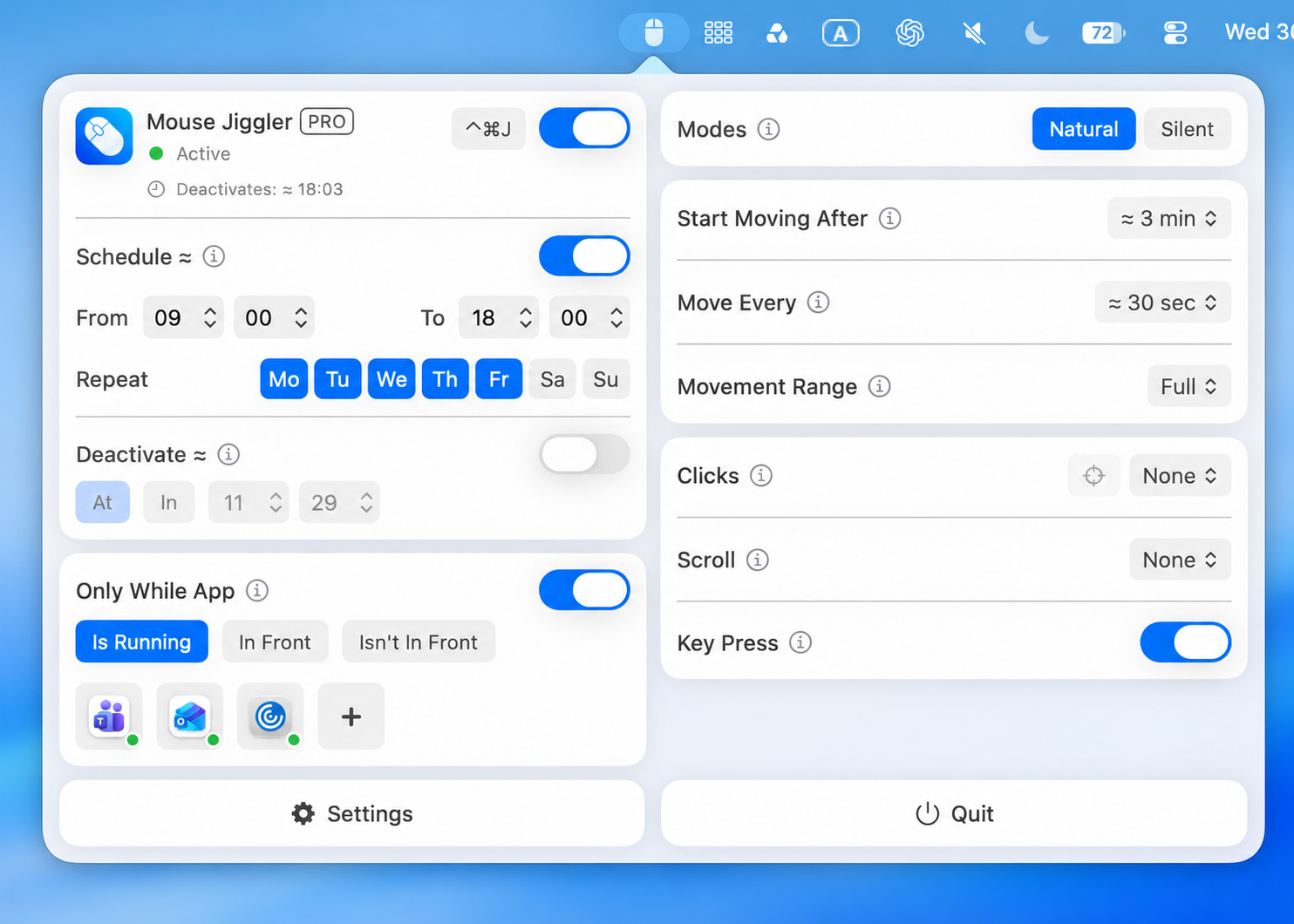
The current app adds Movement Range directly below Move Every. Open that selector to review the available range choices in your installed version. The screenshot above shows Full selected.
| Control | What to check |
|---|---|
| Start Moving After | The idle wait before movement begins; approximately 3 minutes in the screenshot. |
| Move Every | The interval between movements; approximately 30 seconds in the screenshot. |
| Movement Range | The range selection, shown as Full. Review it separately from the timing controls. |
For a useful comparison, keep the same mode, idle delay, interval, and display arrangement. Record the range you started with, try another available range, and observe several movements after the idle delay. Stop the app before changing the range again. This gives you a comparison for your own setup without changing every control at once.
Range names alone do not establish pixel distances or behavior across multiple displays. Test with the displays you plan to use. Clicks and scrolling can remain at None and Key Press can remain off throughout a movement-only check.
Start with movement only
In the menu-bar panel, review Modes, Start Moving After, and Move Every. The first timing control sets the idle delay before movement starts; the second sets how often it repeats. They are not interchangeable.
For a visible setup check, use Natural mode, leave Clicks and Scroll set to None, and turn Key Press off. Wait through the configured idle delay without using the keyboard, mouse, or trackpad. Choose a delay shorter than the Mac’s idle sleep timeout for this test.
Do not infer Silent mode’s exact behavior from its name. Observe the version you are using before relying on it during a specific workflow.
If the pointer moves but the Mac still sleeps
First identify what actually stopped: pointer movement, the illuminated display, or the task running in the background. A dark display alone does not establish that the system slept. Making Movement Range larger is not a substitute for checking the app’s separate sleep setting.
- Open Mouse Jiggler’s Settings from the bottom of its panel. Under System, check Prevent Sleep While Active.
- Record its current value. If the aim is to keep a background task running, enable it for a short check. Keep the lid open and make sure the session is active; review any schedule, app condition, deactivation timer, or battery cutoff.
- Keep the movement controls unchanged during this comparison, with Clicks and Scroll at None and Key Press off.
- Check the sleep indicator below, then confirm progress in the actual task. Restore your previous setting when you finish the comparison.
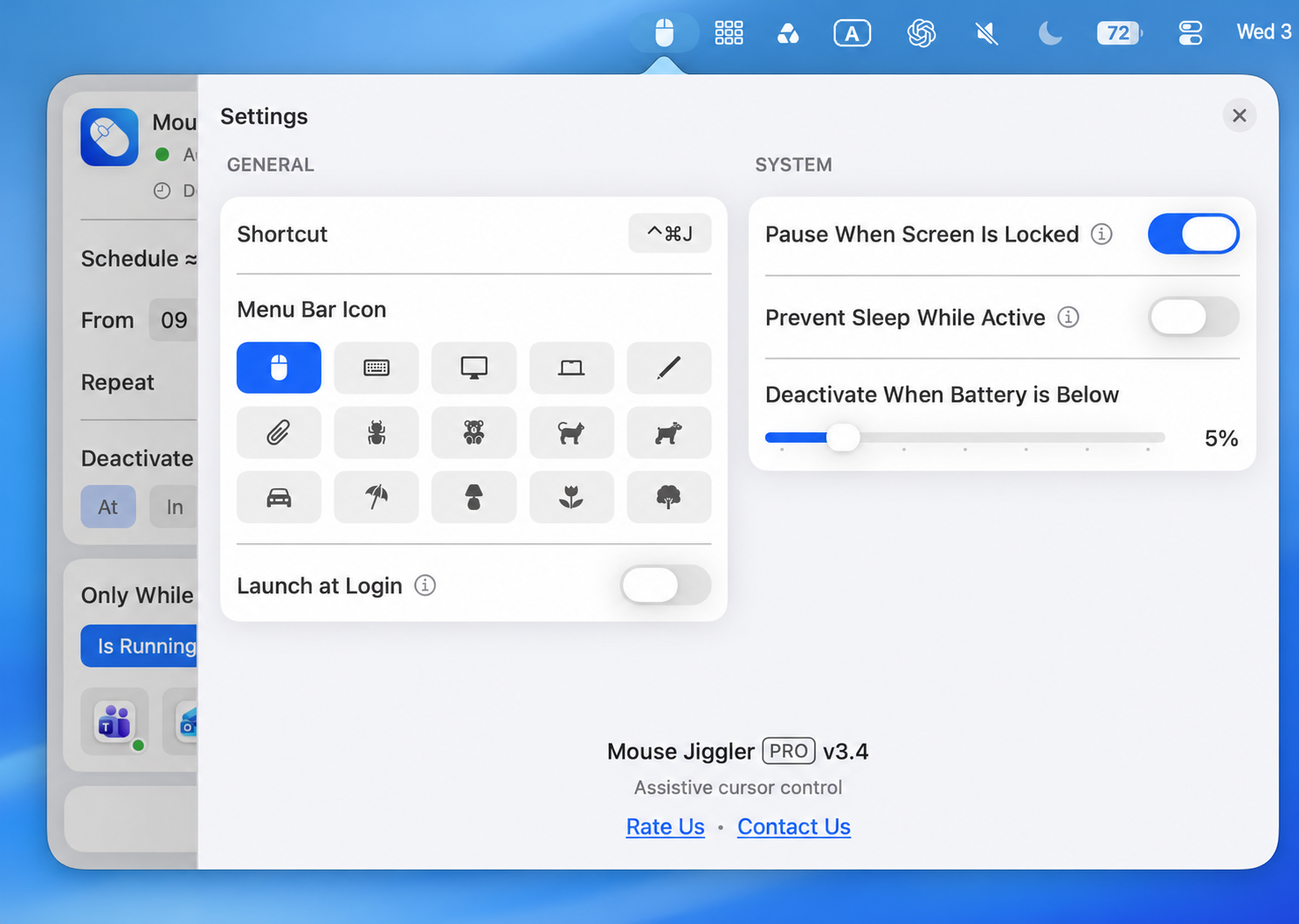
For example, while copying a test folder to an external drive, note the copy’s progress before leaving the Mac alone. If the display later goes dark, inspect the copy when you return. A completed copy is evidence about that task; the screen’s appearance alone is not. See the external-drive copying guide for checking the result and ejecting the drive.
Check Preventing Sleep in Activity Monitor
Open Activity Monitor and choose Energy. Find Mouse Jiggler in the app list and inspect Preventing Sleep. Apple describes this field as showing whether an app is preventing the Mac from sleeping. See Apple’s Energy pane guide.
Compare the entry while your session is active with the sleep setting enabled, then after ending that session. If it does not show sleep prevention while you expect it, record the app version, session status, and settings before changing anything else. This indicator describes the current app state; it does not confirm that a transfer finished or that the display will remain illuminated. It also does not measure whether the pointer is moving.
| Observed result | Next useful check |
|---|---|
| No pointer movement after the idle delay | Check the main switch, input permission, and session conditions. Follow the mouse jiggler troubleshooting guide. |
| The pointer moves, but the display goes dark | Check whether the task kept running. If you need a visible reference, review display sleep separately; a timed display-awake session is another option. |
| Movement stops after locking | Review Pause When Screen Is Locked. Preserve your normal screen-lock requirements; see the locked Mac guide. |
| A task stops after closing the lid | Repeat the check with the lid open. Do not assume a pointer mover or an idle-sleep request overrides lid behavior. |
Add clicks only for a deliberate action
An automatic click can act on whatever receives that input. Before enabling it, consider which window is in front, where controls are located, and what happens if the window changes.
Use a harmless test document or a non-destructive part of your workflow to understand an available option. Avoid treating a successful click in one layout as proof that the same action is safe after resizing or switching windows. Leave click automation off for ordinary reading or a presentation unless it is intentional.
Treat scrolling as a separate reading choice
Scrolling changes the view inside a page or app. If your purpose is to keep a reference visible, unattended scrolling may work against that purpose.
When evaluating a scroll setting, check the direction, the visible result, and what happens when you switch to a different window. If you only want the display to remain on, compare the three keep-awake methods before enabling more input actions.
Keep an easy stopping point
Choose a short session with a clear end. Know where the app’s main switch is and review the Deactivate controls. Add scheduling and app conditions only after basic movement behaves as expected.
The short-session settings guide provides a practical order for configuring those controls. If input does not work at all, check macOS permission before adding clicks or reducing every timer.
To try these controls on your Mac, download Mouse Jiggler on the Mac App Store and follow the short-session checklist. Free to download, with optional PRO features.
Example: keep a reference in place
Open a harmless reference document and start a movement-only session. Leave scrolling off so the text stays where you put it, leave clicking off so a passing pointer cannot activate a control, and turn Key Press off. Check Movement Range before enabling the session. After the idle delay, observe the movement and use the main switch to stop.
Before using this during a presentation, rehearse with the same display arrangement. If you only need the screen to stay lit and do not want pointer movement, use a timed display-awake command instead.
Make your next session simpler.
Explore Mouse Jiggler’s menu-bar movement, timing, and scheduling controls.
Download for Mac