Start with Accessibility permission and the main switch. Then check the idle delay, schedule, Only While App, screen lock, and battery threshold. Test one condition at a time.
Match the symptom to the next check
| What you see | Check first |
|---|---|
| No pointer movement after opening the app | Main switch, Accessibility access, and the entire idle delay |
| Movement works, then stops at a repeatable time | Schedule, Deactivate, battery threshold, and screen lock |
| It stops when you switch windows | Only While App → In Front |
| The pointer moves, but Teams says Away | Teams presence settings; movement is already working |
| A transfer stops while the Mac is awake | The connection, transfer app, and destination error |
1. Confirm the app is active
Open the menu-bar panel and check the main switch. If you cannot find the icon, launch Mouse Jiggler from Applications. The icon can be customized in Settings, so it may no longer look like a mouse.
Also check which behavior you are testing. A lack of obvious cursor travel is not, by itself, enough to diagnose Silent mode. Choose Natural mode for a visible movement check.
If you have not installed this app yet, download Mouse Jiggler on the Mac App Store and follow the first-launch steps. If it is already installed, keep working through the checks below; downloading it again is not the first troubleshooting step.
2. Check Accessibility permission
On macOS 27, open System Settings → Privacy & Security → Device Control and Data Access and look for Mouse Jiggler. On macOS 13–26, the same permission is called Accessibility. Enable access if needed, then follow any macOS prompt to reopen the app. On Monterey, use System Preferences → Security & Privacy → Privacy → Accessibility.
For a complete walkthrough, including a missing or outdated app entry, see Accessibility permission setup.
Use a repeatable baseline
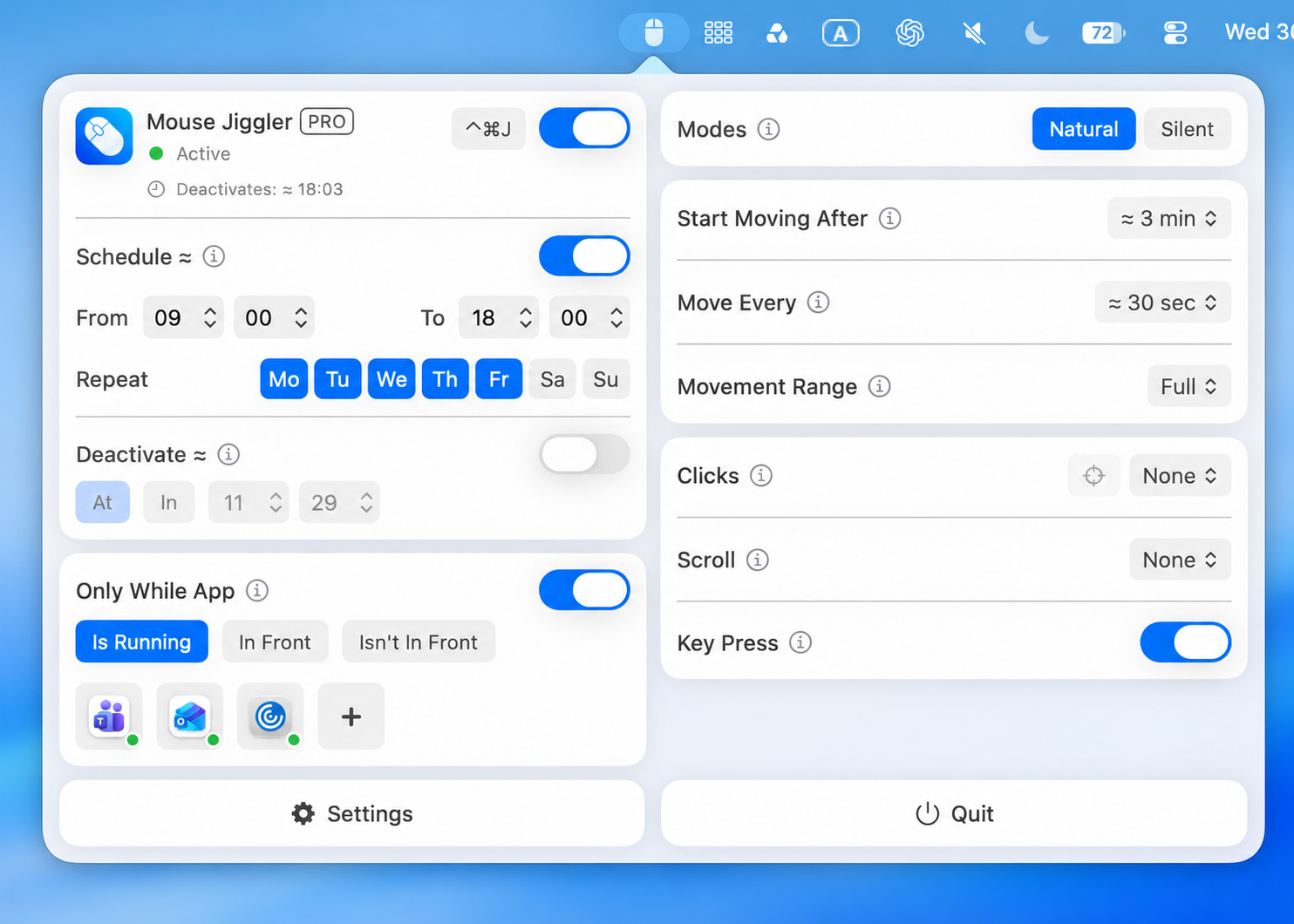
Record your current settings first. Temporarily turn off Schedule, Only While App, and a separate Deactivate condition. Choose Natural mode, set Clicks and Scroll to None, and turn Key Press off. Note your Movement Range selection, then turn the main switch on.
If Start Moving After is three minutes and Move Every is 30 seconds, a twenty-second wait cannot establish a failure. Leave the keyboard, mouse, and trackpad untouched for longer than the idle delay, allowing several movement intervals afterward. Watch the pointer against a visible feature on a blank document.
Then turn the main switch off. Re-enable your original conditions one at a time and repeat the check. This separates basic permission or movement problems from rules that intentionally limit a session.
3. Wait for the full idle delay
The Start Moving After control intentionally postpones movement. If it is set to three minutes, you should not expect the app to move the pointer immediately after enabling it.
Leave the Mac untouched for the entire delay, then allow for the Move Every interval. Keyboard, mouse, or trackpad input can make this an invalid test by resetting the idle condition.
For testing, choose a shorter delay than the Mac’s sleep timeout. Restore a comfortable delay when you finish.
4. Temporarily simplify your conditions
| Control | What to check |
|---|---|
| Schedule | Current time and selected repeat day. |
| Deactivate | Whether a stop time or duration was reached. |
| Only While App | Selected app is open or in front, as required. |
| Screen lock | Pause When Screen Is Locked setting. |
| Battery threshold | Current charge compared with the stop threshold. |
Turn off optional conditions briefly, keep clicks and scrolling set to None, and verify basic movement. Re-enable your conditions one at a time. This makes it much easier to identify the setting that changes the result.
5. Separate sleep from app-specific behavior
A pointer that moves while a chat badge still says Away is a different issue from a Mac that sleeps. Presence can depend on the application, calendar, account, and organization. See how Teams presence works.
Likewise, cursor movement cannot repair a lost internet connection, an expired server login, or a remote-session timeout enforced elsewhere. Record which part of the workflow stops instead of changing all settings at once.
6. Send a useful support report
If the problem continues after reopening the app, contact support with your macOS version, Mouse Jiggler version, power source, movement mode, delay, and enabled conditions. Include the expected result and what actually happened.
A short reproducible example is more useful than “it does not work”: “Natural mode, 1-minute delay, schedule off; no movement after 2 minutes without input” gives support a concrete starting point.
Check why a session stopped
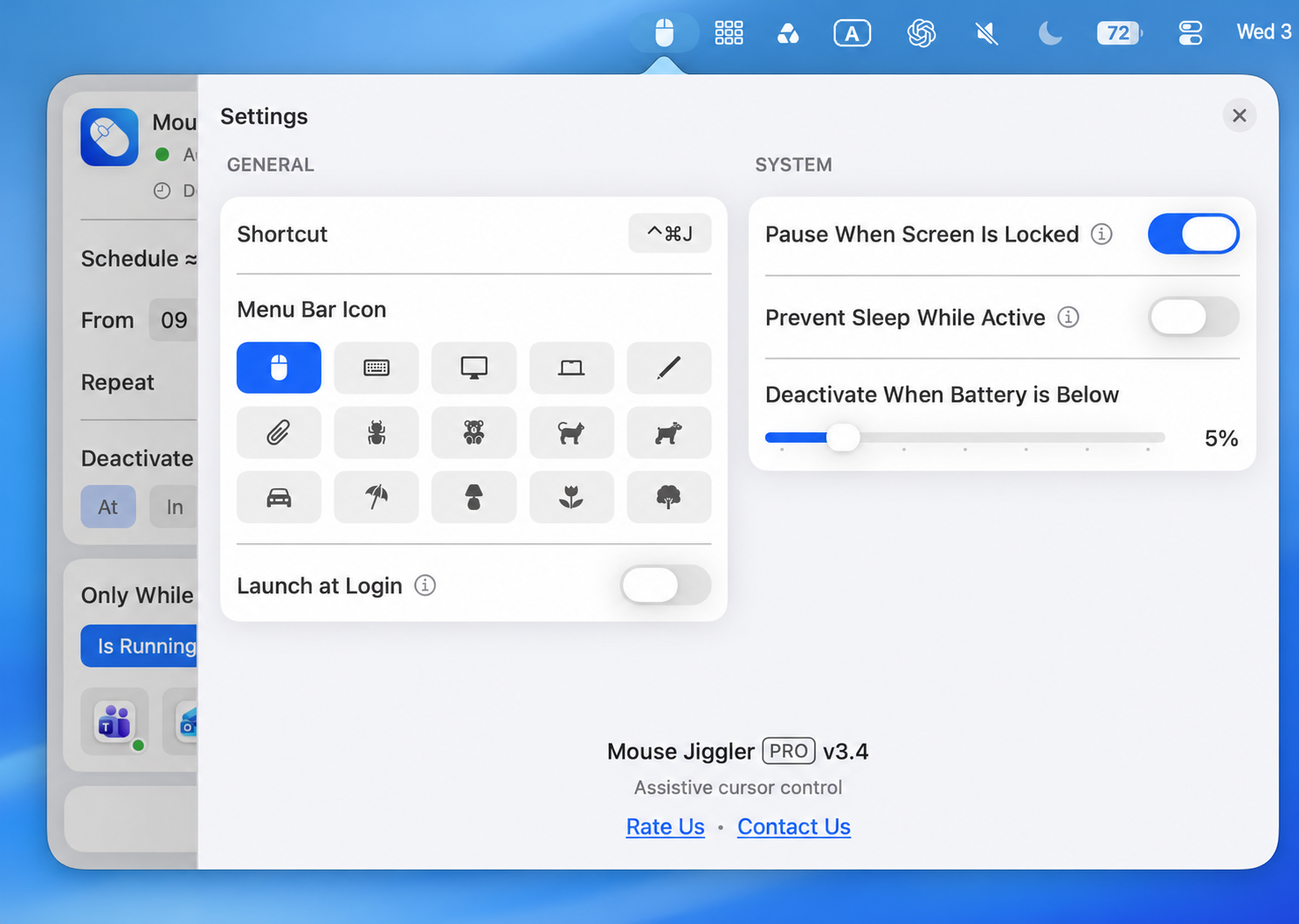
If the test works while the Mac is unlocked but stops after locking, inspect the screen-lock pause setting. If it stops on battery, compare the current charge with the configured cutoff. A stop at one of these boundaries is different from a missing Accessibility permission.
For a new installation, start with the download and first-session guide. If movement works but the Mac still sleeps, review Settings → System → Prevent Sleep While Active as a separate check. Record its state and compare a short session after changing only that control. A screenshot of the switch does not establish what a background transfer did. Avoid reinstalling until you have checked the switch, permission, timing, and conditions.
Still not moving? Bring one clear example.
Send your macOS and app versions, the session settings, and what happened after the full idle delay. That gives support a useful place to start.
Get help with your setupView Mouse Jiggler on the Mac App Store · Free to download, with optional PRO features.