Use the Mac App Store link on this website, review compatibility and purchase details, then install and open the app. Find its menu-bar icon, complete permission setup, and test movement before adding schedules or extra actions.
Open the intended Mac App Store listing
Mouse Jiggler is a common search phrase, so check which product you are installing. This website links to Mouse Jiggler’s Mac App Store page. The listing is the source for current compatibility, features, regional pricing, and optional purchases.
The app is free to download with optional PRO features. Review those details before deciding which controls you need. Download availability and the exact store buttons can depend on your account and region.
Find the app after installation
Open the installed app from Applications. Its controls live in the macOS menu bar, so a large document window is not what you are looking for. Use the app’s menu-bar icon to open its controls. The icon can be customized in Settings, so it may differ from another person’s screenshot.
Install through the store
Open the listing in the App Store app on your Mac and use its download control. Complete any Apple Account sign-in or confirmation requested by the store. After installation, open Mouse Jiggler from the store or Applications.
If the store prevents the download, check its displayed error and the compatibility information first. Apple’s download guidance covers account and App Store steps. Installing a different file from a search advertisement is not a useful fix for a store-specific error.
Confirm the permission you enabled

On macOS 27, find this permission in System Settings → Privacy & Security → Device Control and Data Access. On macOS 13–26, choose Accessibility in Privacy & Security. After enabling access, return to Mouse Jiggler and follow any macOS request to reopen it. If permission is unavailable on a managed Mac, contact the administrator. The full Accessibility setup guide covers a missing entry and an existing entry that no longer matches the installed copy.
Find the menu-bar panel
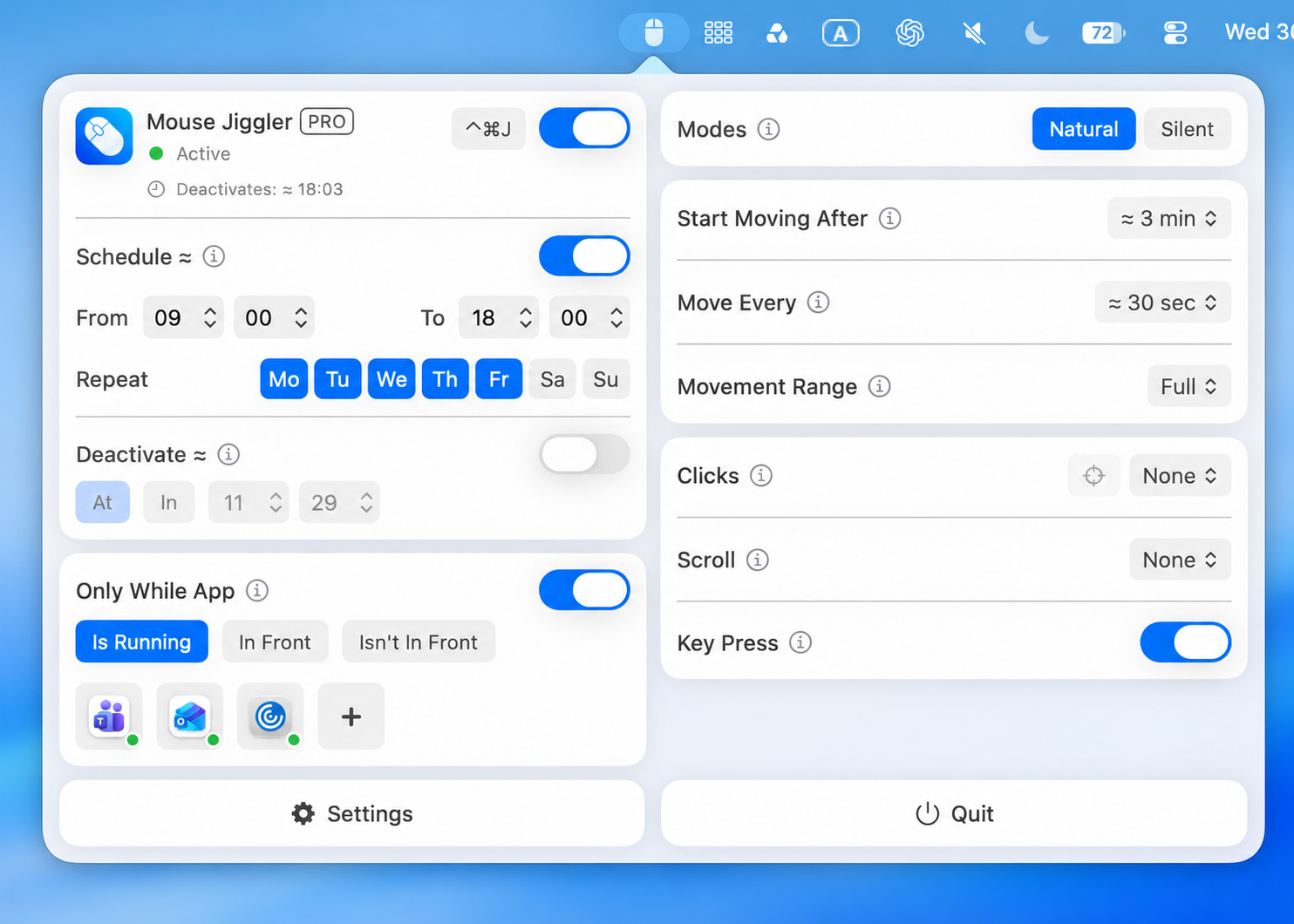
Mouse Jiggler’s main controls live in the macOS menu bar. Open its panel and locate the main on/off switch, timing controls, and Settings button. The app offers a choice of menu-bar icons, so the symbol may look different if it has been customized.
For the first session, keep the setup simple. Leave schedules, app conditions, clicks, and scrolling out of the test until you have checked basic movement.
Complete the input permission step
Follow the app’s prompt to grant the macOS access needed for input control. Downloading through the store does not replace this permission step. Our Accessibility permission guide explains where to look and what to check if the app is missing.
Return to Mouse Jiggler after completing the prompt. If macOS asks you to reopen it, do so before testing. Avoid changing several other settings at the same time; otherwise you lose track of what made the difference.
Run a short first session
- Choose a visible movement mode for the test.
- Review Start Moving After and Move Every.
- Enable the main switch and leave input devices untouched through the idle delay.
- Observe the result, then switch the app off.
For a planned session, continue with the settings walkthrough. If movement never begins, use the troubleshooting checklist before reinstalling.
If you are comparing downloads from different websites, read how to check the source and permissions.
Your first-session checklist
- Confirm the app is enabled and Accessibility permission is on.
- For a simple check, leave Schedule, Only While App, and Deactivate off.
- Choose Natural mode, with Clicks and Scroll set to None and Key Press off.
- Find Movement Range below Move Every. Review the selected value; the screenshot shows Full.
- Read Start Moving After and Move Every. Wait through the full idle delay without manual input, then observe several movement intervals.
- Switch the app off after observing the result.
A three-minute idle delay means you need to wait more than three minutes before judging movement. If that works, continue to scheduling. If it does not, use the symptom-based troubleshooting guide.
Ready for your first short session?
Download the app, open it from Applications, and use the checklist above before adding schedules or extra input actions.
Download for Mac