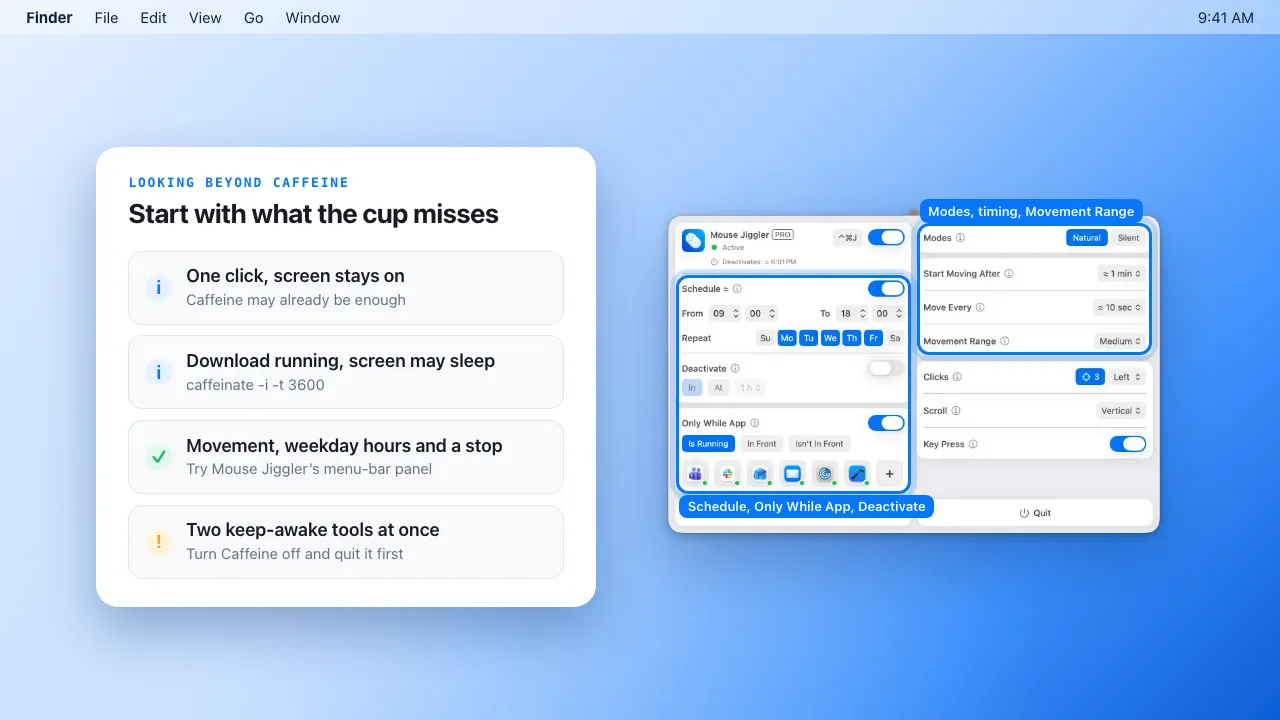
Caffeine is a free, open-source menu-bar toggle: click its coffee cup and, according to the developer, your Mac stops sleeping automatically, dimming the screen and starting screen savers. If that is all you need, keep it. Consider caffeinate -i when the display may turn off during a download, or Mouse Jiggler when you want cursor movement, weekday hours, app conditions and a stop time. Run only one keep-awake tool at a time.
What Caffeine does
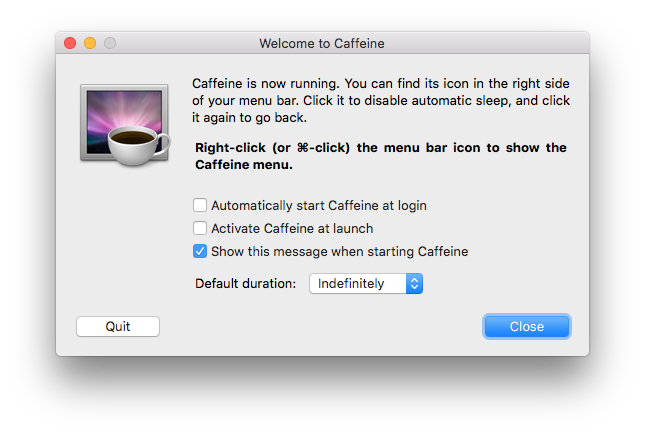
Caffeine, maintained by IntelliScape Solutions, puts a coffee cup in the menu bar. Click the cup to turn Caffeine on, and click it again to turn it off. The developer describes the active state as preventing automatic sleep, screen dimming and screen savers. Right-clicking or Command-clicking the cup opens its menu.
According to the project’s README, that menu lets you activate Caffeine for a limited time. In Preferences you can set a default duration, so Caffeine turns itself off after a set time, and choose whether it starts automatically with your Mac.
Caffeine is free, with optional donations, and its source code is public. Tomas Franzén created the original app in 2006; IntelliScape continued development after he released the source code. Its GitHub releases list version 1.1.4, published in September 2025, with native Apple silicon support and a fix for changes in macOS Tahoe. The maintainer offers the download on its own page.
We publish Mouse Jiggler. This guide is based on Caffeine’s maintainer page, its README and our app’s documented controls, checked on November 24, 2026. We have not run a comparative endurance test.
When Caffeine is the right tool
Caffeine’s strength is that there is almost nothing to set up. You click once before a presentation, a long read or a dashboard you want to keep visible, and click again when you are done.
- The screen should stay on. You want a lit, undimmed display, not just a computer that stays awake.
- You start it by hand. You remember to turn it off, or you rely on its timeout or default duration.
- The pointer can stay still. Nothing in your task depends on cursor movement.
- You prefer a small open-source utility. There are no paid features to evaluate.
If this describes your use, switching adds setup without a clear benefit. Keep Caffeine and install the maintainer’s current version for your macOS release.
When you may want something else
| Your situation | A useful next step |
|---|---|
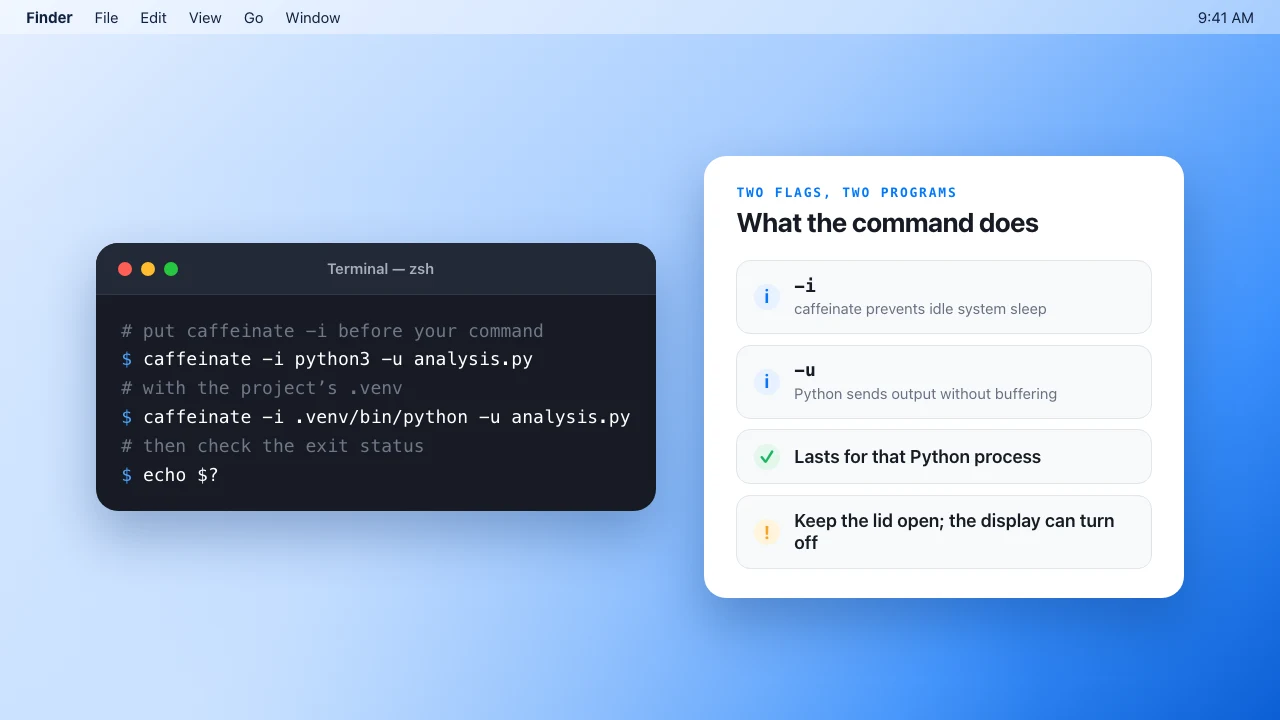
| A download should finish, but the screen may turn off | Run caffeinate -i -t 3600 in Terminal. It requests protection against idle system sleep for one hour and lets the display sleep normally. |
| The display must stay visible until a fixed end | Caffeine’s timeout is enough. In Terminal, caffeinate -di -t 1800 does the same for 30 minutes. |
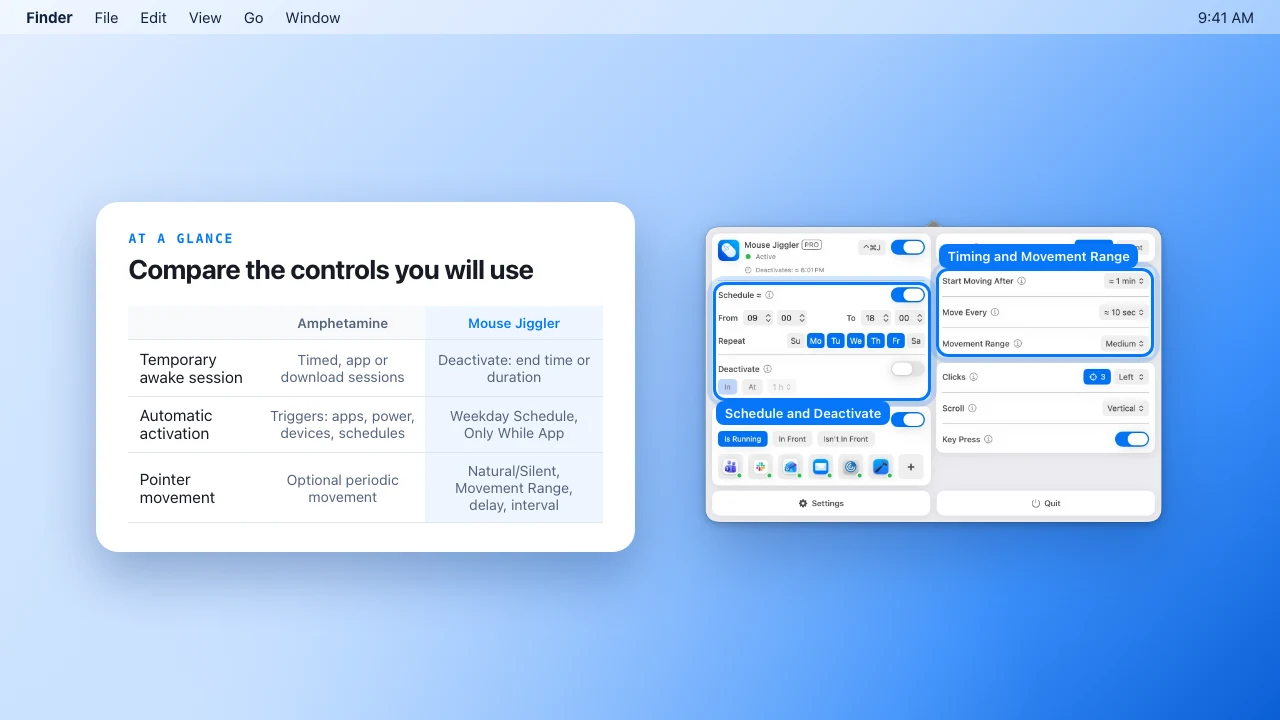
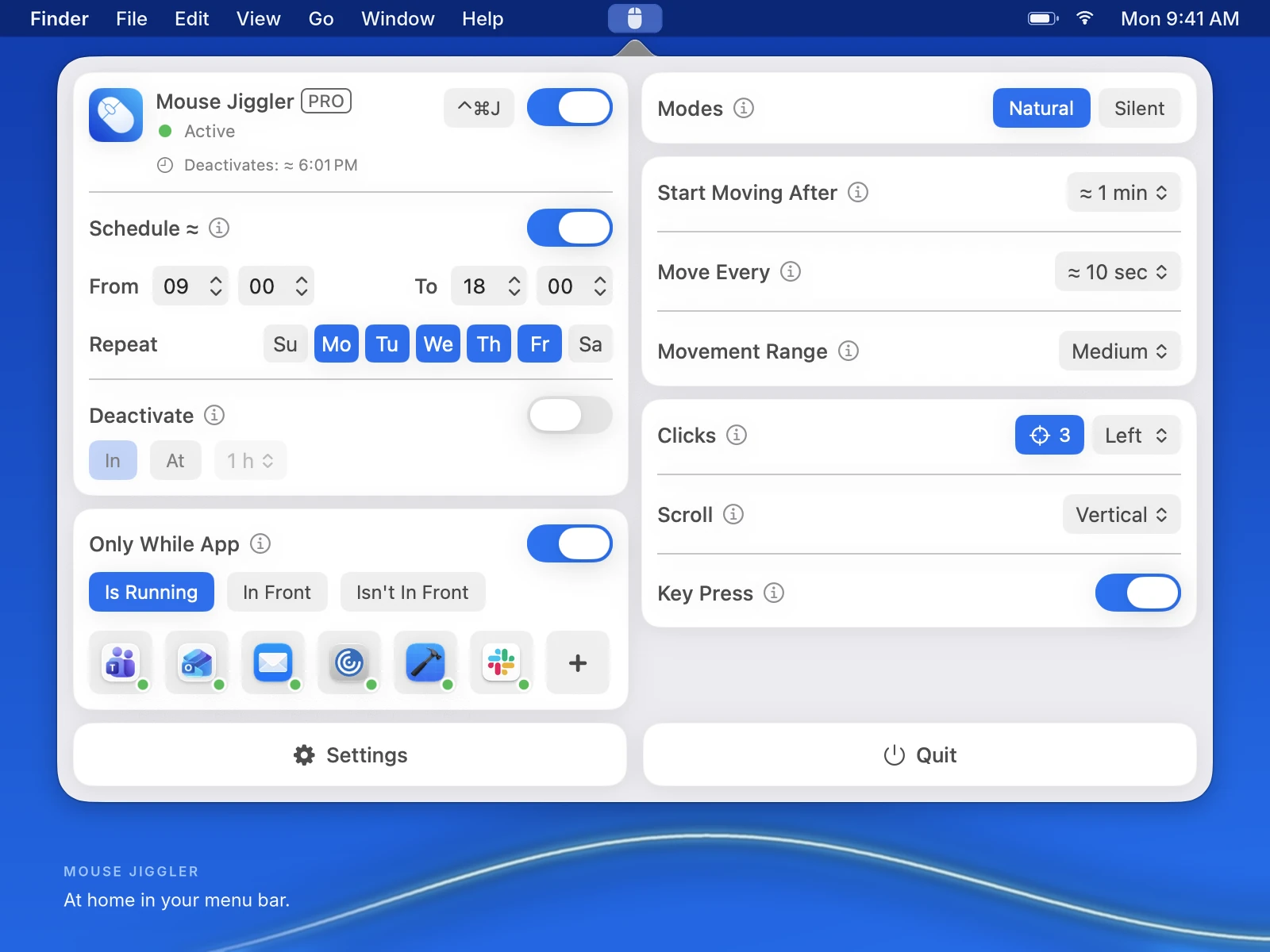
| Cursor movement is part of the routine | Mouse Jiggler: Movement Range, a delay before movement begins, a repeat interval, and Natural or Silent mode. |
| The same weekday hours every week | Mouse Jiggler’s Schedule saves the hours and repeat days. |
| Only while a particular app is running or in front | Mouse Jiggler’s Only While App condition. |
| A stop at a clock time or after a duration | Mouse Jiggler’s Deactivate control. |
Caffeine’s active state keeps the display lit. For a background transfer, that is often unnecessary. The caffeinate guide explains the flags and how to stop a session, and the downloads guide covers what happens to transfers when a Mac sleeps. If you want timers and automatic triggers in a menu-bar app, compare Amphetamine and Mouse Jiggler.
What Mouse Jiggler adds
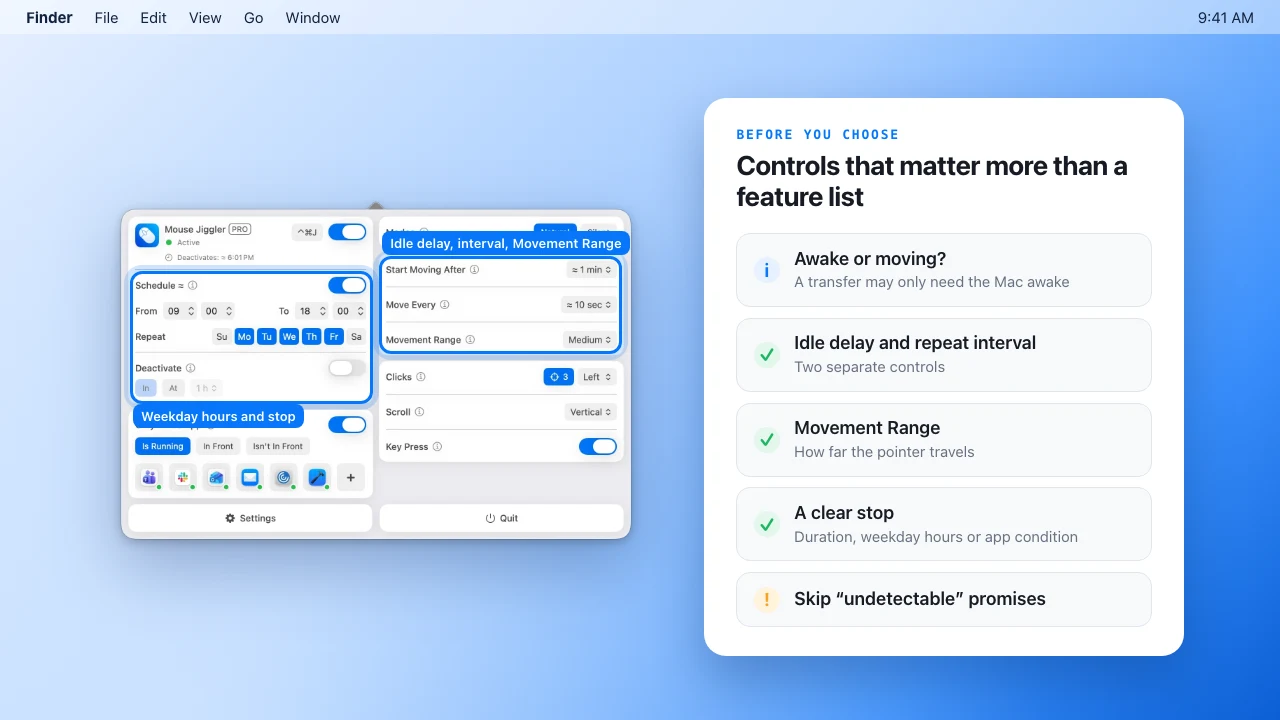
Mouse Jiggler moves the cursor at the interval and range you set. macOS counts that as activity, so the Mac stays awake and the display does not dim. In that respect it behaves like Caffeine: it is not a way to let the screen sleep. A separate Prevent Sleep While Active setting stops system sleep while a session runs.
The difference lies in deciding when a session applies. Schedule saves From and To hours on the days you pick. Only While App runs while selected apps are running, in front or not in front. Deactivate stops the session after a set duration or at a clock time. In Settings you will also find Pause When Screen Is Locked and Deactivate on Low Battery.
Mouse Jiggler is free to download and includes optional PRO features; some of the controls above require PRO. Check which ones you need in the app before paying. Our scheduling guide shows how to set up weekday hours.
Download Mouse Jiggler on the Mac App Store. Free to download, with optional PRO features.
Switch without running two keep-awake tools
Running Caffeine and a replacement at the same time hides problems. If one tool stops as planned, the other can still keep the Mac or its display awake, and you cannot tell which tool caused what.
- Note how you used Caffeine. Write down whether you used a timeout or a default duration and whether Caffeine starts automatically with your Mac.
- Turn Caffeine off and quit it. Click the cup so that Caffeine is no longer active, then quit it from its menu. If it starts automatically, turn that option off in Caffeine’s Preferences for the trial.
- Check that nothing else is holding the Mac awake. Open Activity Monitor → Energy and look at the Preventing Sleep column, or run
pmset -g assertionsin Terminal. Our guide to finding what keeps a Mac awake explains the output. - Start one replacement. For an occasional transfer, run a timed
caffeinate -icommand. For Mouse Jiggler, install it from the Mac App Store, follow the macOS permission guide, confirm basic movement and stopping, then add Schedule, Only While App or Deactivate one at a time.
These are manual steps, not a settings import. A duration you used in Caffeine becomes a -t value in seconds for caffeinate, or a Deactivate duration in Mouse Jiggler.
Check the first session
Try the new setup while you are at the Mac, with your normal power and lock settings.
- Display: does the screen behave as intended, lit for a dashboard or allowed to turn off during a transfer?
- Start: with Mouse Jiggler, does movement begin after the idle delay you chose?
- Stop: does the session end with the main switch, Control-C in Terminal, or your Deactivate condition?
- After the stop: run
pmset -g assertionsagain and check that the request has disappeared.
If a check fails, note which one. The troubleshooting guide separates permission, timing and session-condition problems. Once the replacement works, leave Caffeine’s automatic start off so the two do not overlap later.
Keep Caffeine or switch?
Caffeine remains a sensible choice for a manual, one-click session that keeps the screen awake. Switch when you need something it does not cover: a display that may sleep during a transfer, cursor movement, or a routine that should start and stop on its own.
For more options, including hardware and other sleep-only tools, see the full Mac alternatives comparison.
Replace the cup with a routine.
Quit Caffeine, try one short Mouse Jiggler session, then add the schedule and stop time you need.