Open Mouse Jiggler from the menu bar, enable Schedule, set From and To times, and select the days you need. Check the main switch, idle delay, and any app or battery conditions before testing.
Start with a weekday schedule
A schedule is useful when you repeatedly need the same period of activity. For example, you might want a reference screen available from 08:00 to 18:15 on weekdays, without leaving a session enabled indefinitely.
- Click the Mouse Jiggler icon in the macOS menu bar.
- Enable Schedule.
- Set From to 08:00 and To to 18:15.
- Select Monday through Friday in Repeat.
- Check that the main Mouse Jiggler switch is enabled.
These are example settings, not defaults you have to use. Choose a short test window first so you can confirm the behavior on your Mac.
Check the controls in the app
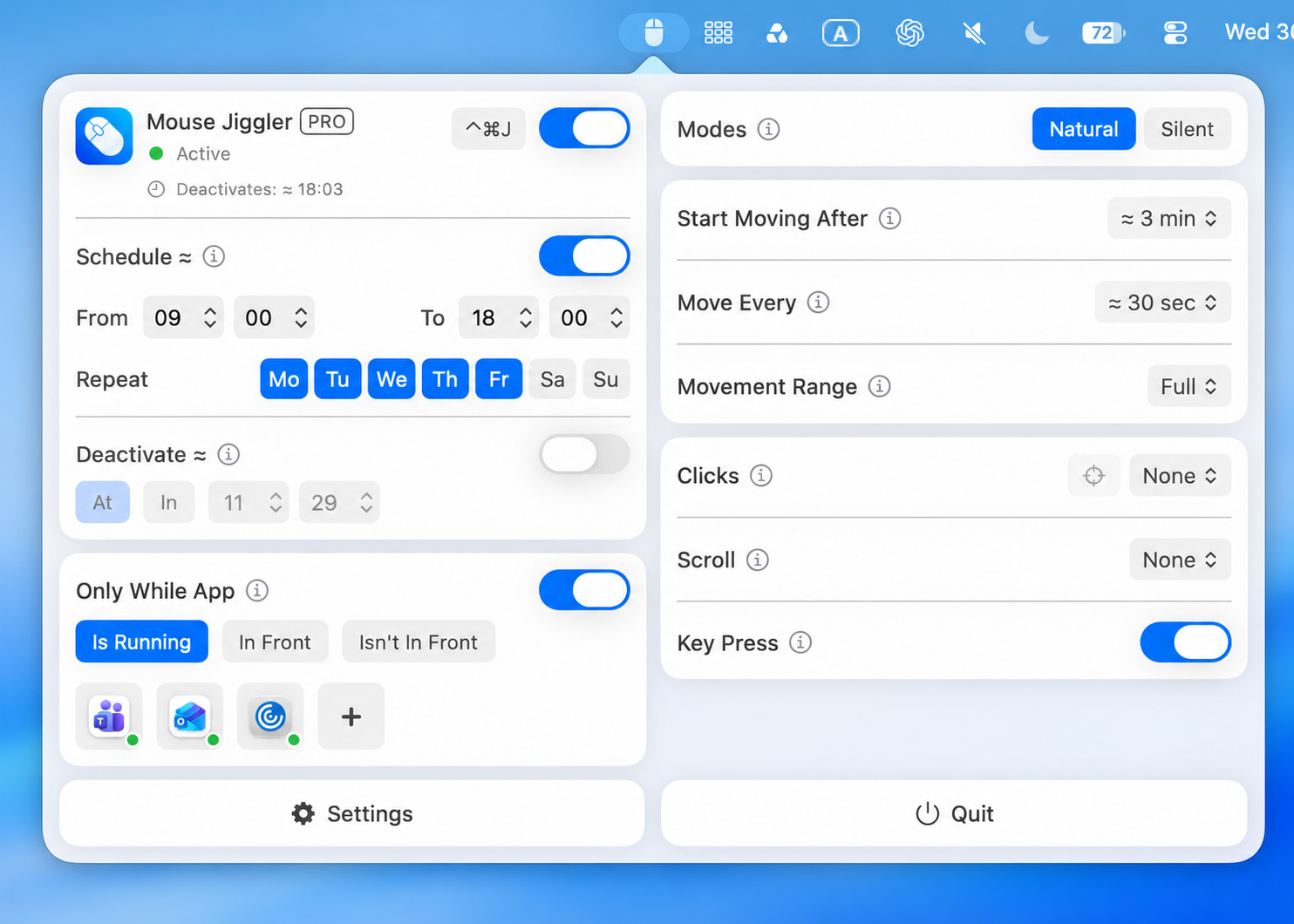
Schedule has its own switch, separate from the main app switch. Selecting weekdays or editing times alone does not enable it. A saved time range can remain visible while Schedule is off.
Understand the idle delay and interval
Start Moving After defines the pause before automated movement begins. Move Every controls how often movement occurs. They answer different questions: when to begin, and how often to repeat.
A schedule alone does not mean the pointer must immediately move at its start time. Manual interaction and the configured delay still matter. If you are testing, stop touching your input devices and wait for the entire delay.
For an awake session, compare the delay with your Mac’s inactivity settings. A delay longer than the time before your Mac sleeps may never get a chance to begin. Test with the actual settings and power source you plan to use.
Add a planned stopping point
The Deactivate controls offer At and In options for a stop time or duration. Use a stopping condition for a one-off task instead of relying on memory to switch the app off.
Keep the first setup simple: try either a schedule or a deactivation condition, verify it, then combine controls if needed. When several conditions are enabled together, check each one before assuming something has failed.
Limit a session to a particular app
Only While App gives you two conditions: Is Running and In Front. The first relates to whether the selected application is open; the second relates to the application in the foreground.
Choose the condition that matches your workflow. A foreground condition can stop applying when you switch windows. That is useful for a focused session, but can be confusing if you expect movement to continue while another app is in front.
Check lock and battery settings
In Settings, review Pause When Screen Is Locked and Deactivate When Battery is Below. A paused or stopped session may be doing exactly what you asked.
Scheduling is not a wake-up alarm for a sleeping computer, and it does not override a closed laptop lid or your organization’s device rules. Test a complete start-and-stop cycle while your Mac is awake before relying on a longer session.
If your test does not behave as expected, use the step-by-step troubleshooting checklist.
Try a short window before using a full day
- Choose a test period later today that lasts at least ten minutes and select today in Repeat.
- Use an idle delay shorter than that window and shorter than the Mac’s sleep timeout.
- For this check, turn Only While App and a separate Deactivate condition off so they do not end the session first. Leave Clicks and Scroll at None and Key Press off; review Movement Range before starting.
- Enable the main switch and Schedule. Leave input devices alone through the full idle delay.
- Observe both the beginning and end of the window. Restore your preferred controls afterward.
For example, test 14:00–14:10 before relying on 09:00–18:15. Choose the actual current day and a future start time; the example clock times are not a command to use an expired window.
This is a repeatable check for your Mac, not a claim that an all-day schedule was tested here. A lock, low battery, or another enabled condition can affect the result.
Review screen-lock and battery stopping conditions
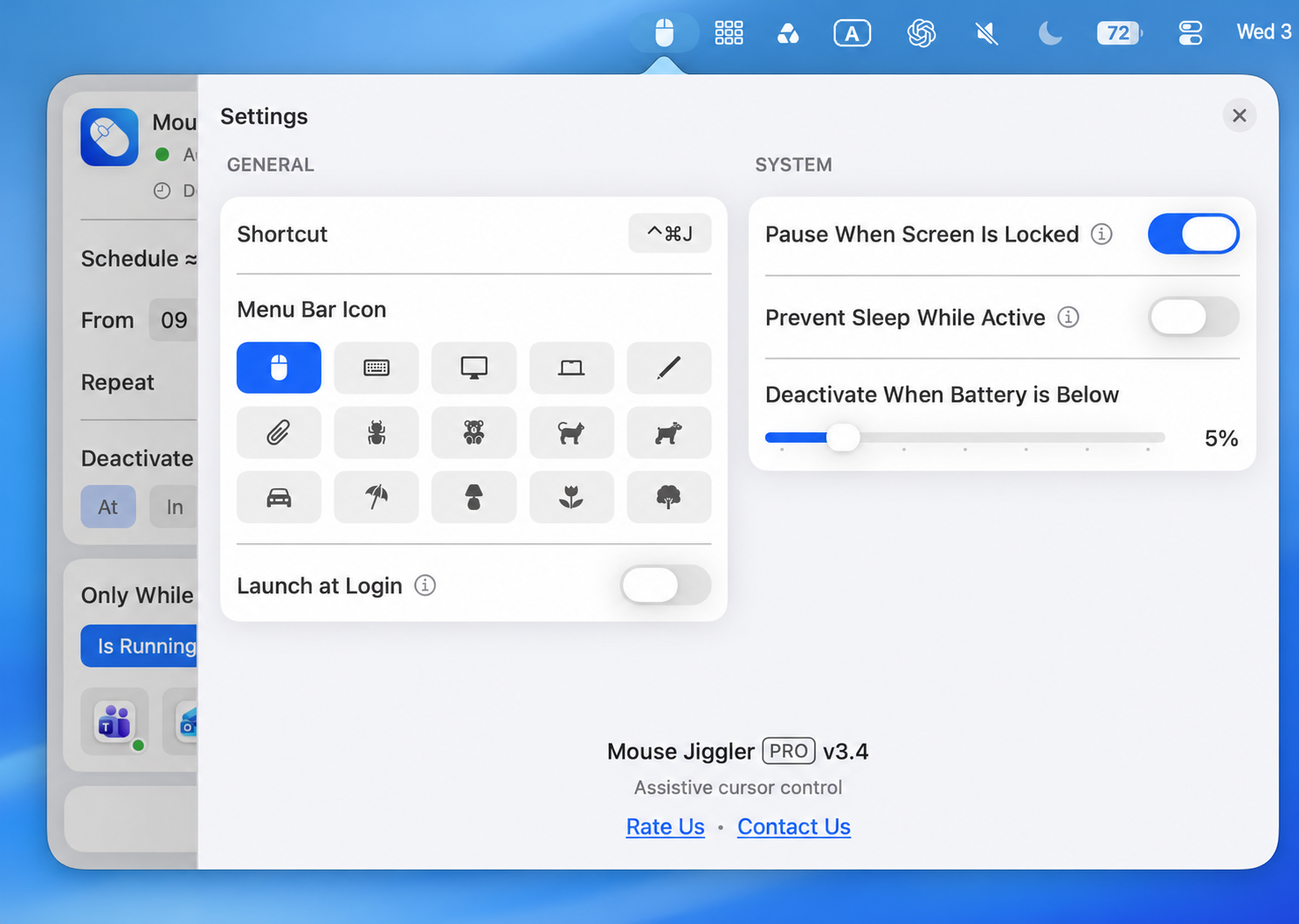
Check Prevent Sleep While Active, Pause When Screen Is Locked, and the battery cutoff before a long session. The new sleep-prevention switch sits in the System column, separate from the screen-lock pause switch. Keep the lock behavior required for your device. If your use case requires background work while the screen is locked, compare a temporary system-awake request and test the actual transfer separately.
To use these controls, download Mouse Jiggler on the Mac App Store. Review the listing for feature availability; some controls require PRO.
Make your next session simpler.
Explore Mouse Jiggler’s menu-bar movement, timing, and scheduling controls.
Download for Mac