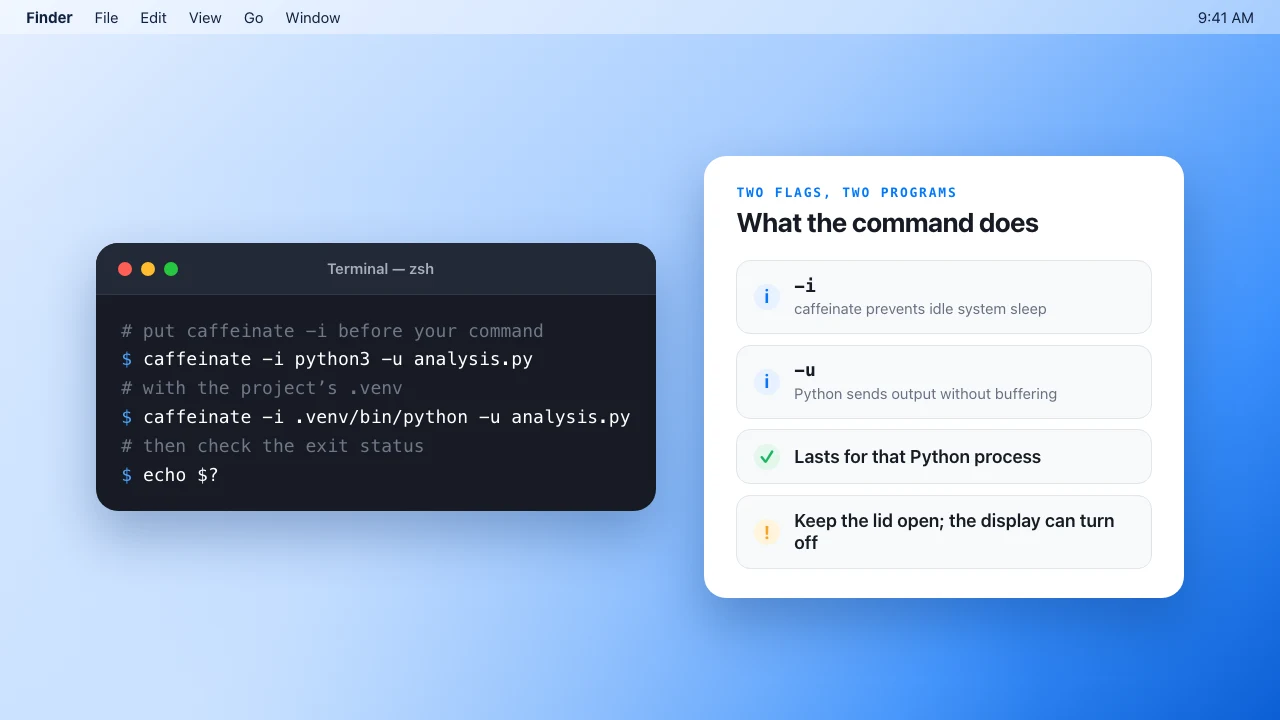
Put caffeinate -i before the Python command you already use: caffeinate -i python3 -u analysis.py. The sleep request lasts for that Python process. Keep the MacBook lid open and the Terminal session running; the display can turn off.
Start with the command that already works
In Terminal, go to your project folder and confirm the script runs with the expected Python installation. Replace analysis.py below with your own script, keeping its usual arguments.
caffeinate -i python3 -u analysis.pyThis is useful for a local data conversion, report, or batch of files whose duration is hard to predict. You do not need to guess a two-hour timer. Apple’s caffeinate manual describes a request that follows the supplied command’s lifetime.
The two flags belong to different programs: -i tells caffeinate to prevent idle system sleep; -u tells Python to send output without its usual buffering. Neither repairs a failing script. If you need a fixed awake period instead, use the caffeinate timer reference.
Use your project’s Python environment
If the project already uses a virtual environment called .venv, run its interpreter directly from the project folder:
caffeinate -i .venv/bin/python -u analysis.pyYou do not need to activate that environment first. Python’s venv documentation confirms that calling the environment’s interpreter is sufficient. Keep the environment you normally use; creating another one just for caffeinate can leave your dependencies behind.
For a path containing spaces, quote the interpreter and script paths separately:
caffeinate -i "/path/to/My Project/.venv/bin/python" -u "/path/to/My Project/analysis.py"Those paths are placeholders. If you get ModuleNotFoundError, compare the interpreter with your normal working command before installing anything. A different Python environment is a different problem from Mac sleep.
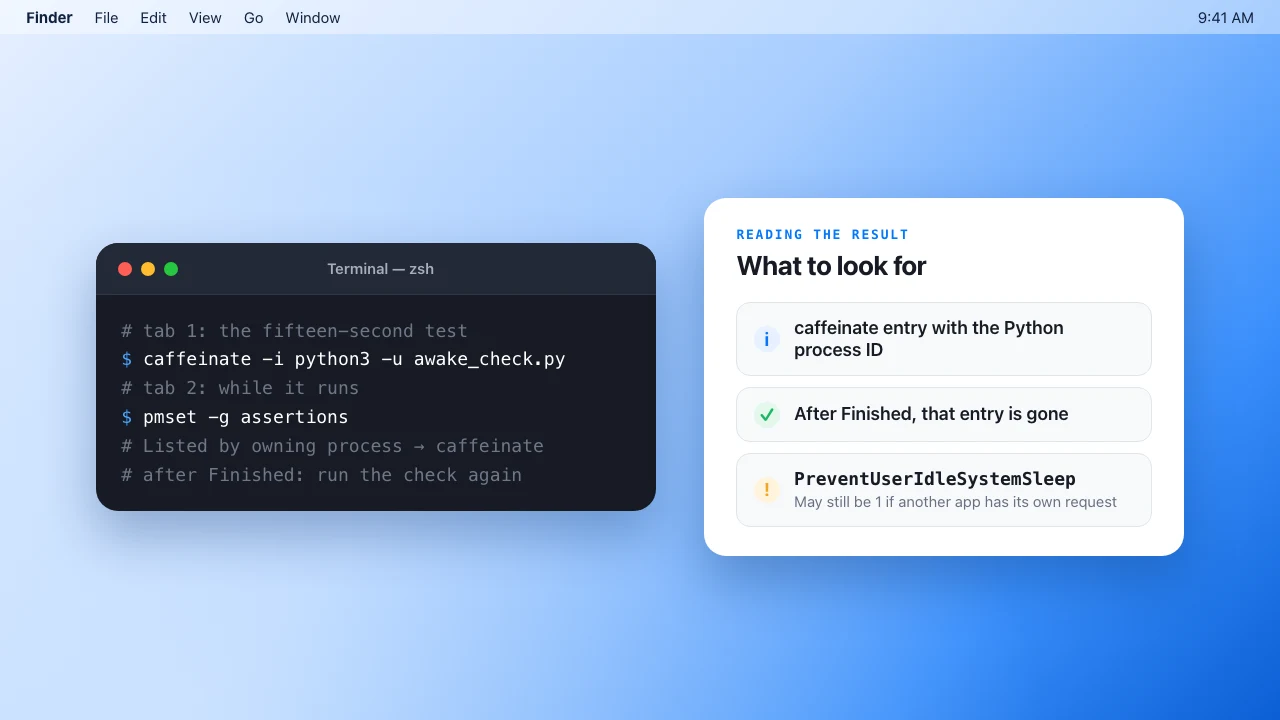
Try a fifteen-second check before a long job
Save the following as a new file named awake_check.py in a test folder. It prints a process ID and three progress messages, then exits.
import os
import time

print("PID:", os.getpid(), flush=True)
for step in range(1, 4):
    print(f"Step {step}/3", flush=True)
    time.sleep(5)
print("Finished", flush=True)
Run it with the same interpreter you plan to use for the real job:
caffeinate -i python3 -u awake_check.pyWhile it runs, open a second Terminal tab and enter:
pmset -g assertionsLook under Listed by owning process for the caffeinate entry and its Python process ID in the details. After Finished appears, run the check again. That job’s entry should be gone. The overall PreventUserIdleSystemSleep value may still be 1 because another app has its own request.
We ran this short check on macOS 27.2.1 with Python 3.12.4. The job finished in about fifteen seconds and its assertion disappeared. In a separate check, we called a virtual environment’s interpreter directly. A script exiting with code 7 also returned that code through caffeinate. These were process checks on an awake Mac, not an overnight, locked-screen, or closed-lid test.
A quiet Terminal does not always mean the script stopped
A script can be busy without printing anything. Python can also buffer output, especially when you send it to a file. The Python -u option helps with the second case; it cannot create progress messages that the script never writes.
To keep a log, choose a new filename and run:
caffeinate -i python3 -u analysis.py > analysis-run.log 2>&1This writes standard output and errors to analysis-run.log in the current folder. The > operator replaces an existing file with that name, so choose a different name for a previous log you want to keep. Read the log in another window while the first Terminal session stays open.
When the command returns, check its exit status immediately:
echo $?A nonzero value calls for checking the error output. Even a zero exit status does not prove that a report contains the right data: open the result and check the rows, files, or other outcome your script was meant to produce.
Match the awake request to where the job runs
| Your setup | What to check |
|---|---|
| A local Python script in Terminal | Place caffeinate before that exact Python command, including its interpreter and arguments. |
| An editor’s Run button or a notebook | A command typed in another Terminal does not wrap that run. Use a suitable timed awake session, or run the script through the command above. |
| A job on another computer over SSH | Keeping this Mac awake does not control the remote computer. Follow the SSH host and client checklist. |
| A launcher that starts a worker and then exits | The request follows the supplied process. Keep the launcher waiting for its work, or choose an awake window that you monitor separately. |
For a script already running, you can use caffeinate -i -w PID in another Terminal, replacing PID with its actual process ID. This does not restart or take over the script. The process-wait example explains the command and how to stop the separate request.
Leave the display free to turn off
A background calculation usually needs the computer awake, not an illuminated screen. -i does not request display sleep prevention. Apple lists the display-off timers separately in Lock Screen settings.
For a long local run, connect power, keep the laptop lid open, and leave Terminal running. Keep your usual password protection. A sleep request does not override lid-close sleep, keep a powered-off Mac computing, repair a network failure, or preserve a process after you close its session. If you need to stop the script early, use its supported cancellation method; Control-C normally interrupts the foreground Python program.
The request ends when its process exits. That releases this one reason to stay awake; it does not force the Mac to sleep immediately. Other apps and your normal settings still apply. See sleep, display-off, and screen-lock differences if those states are getting mixed together.
When menu-bar controls are more convenient
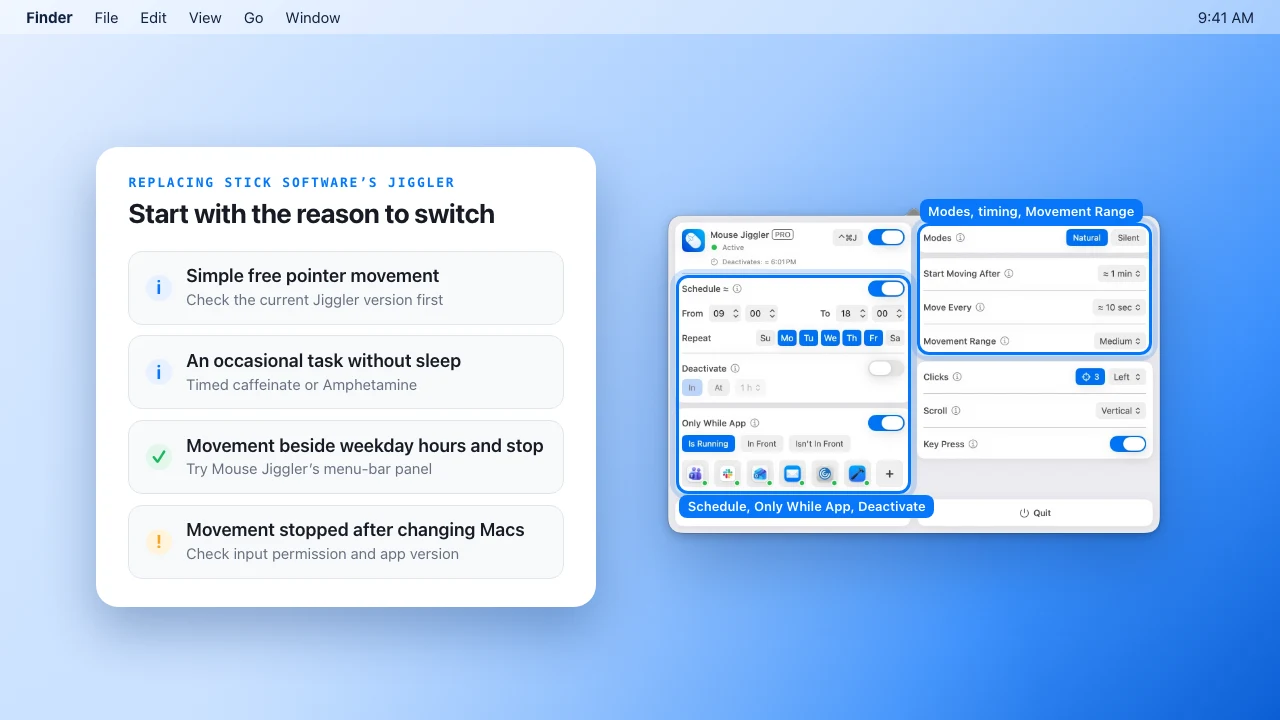
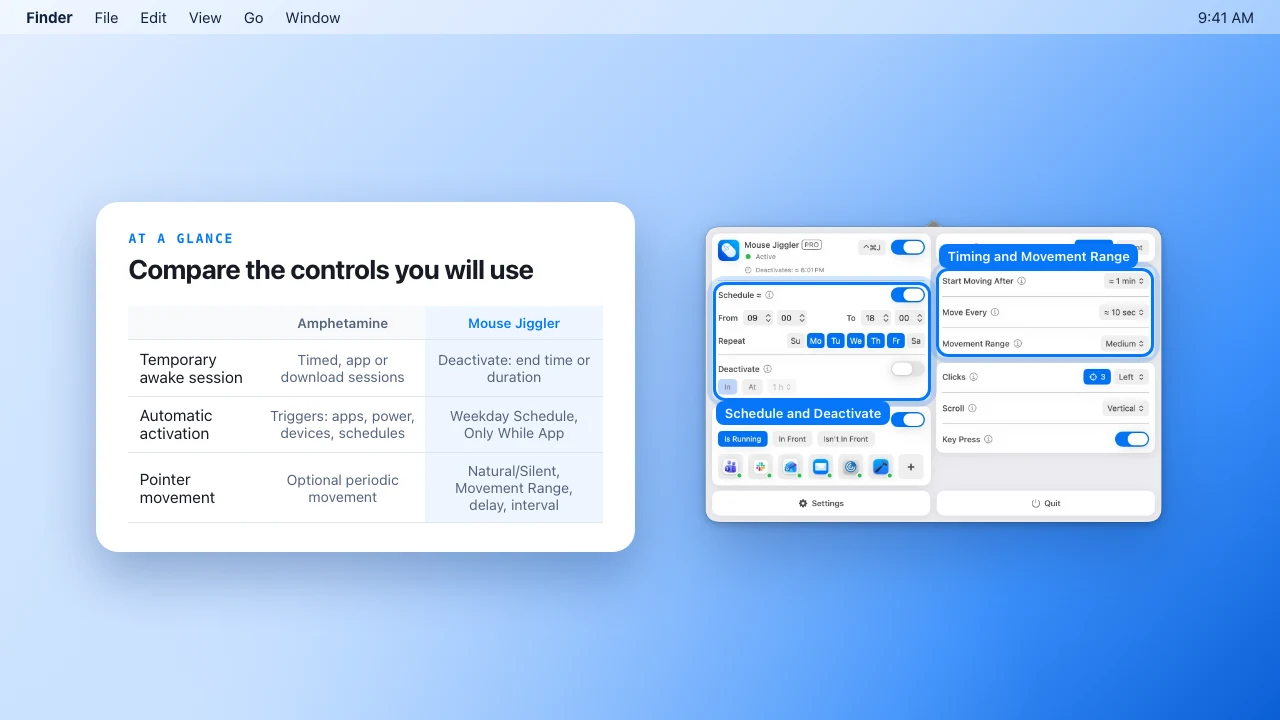
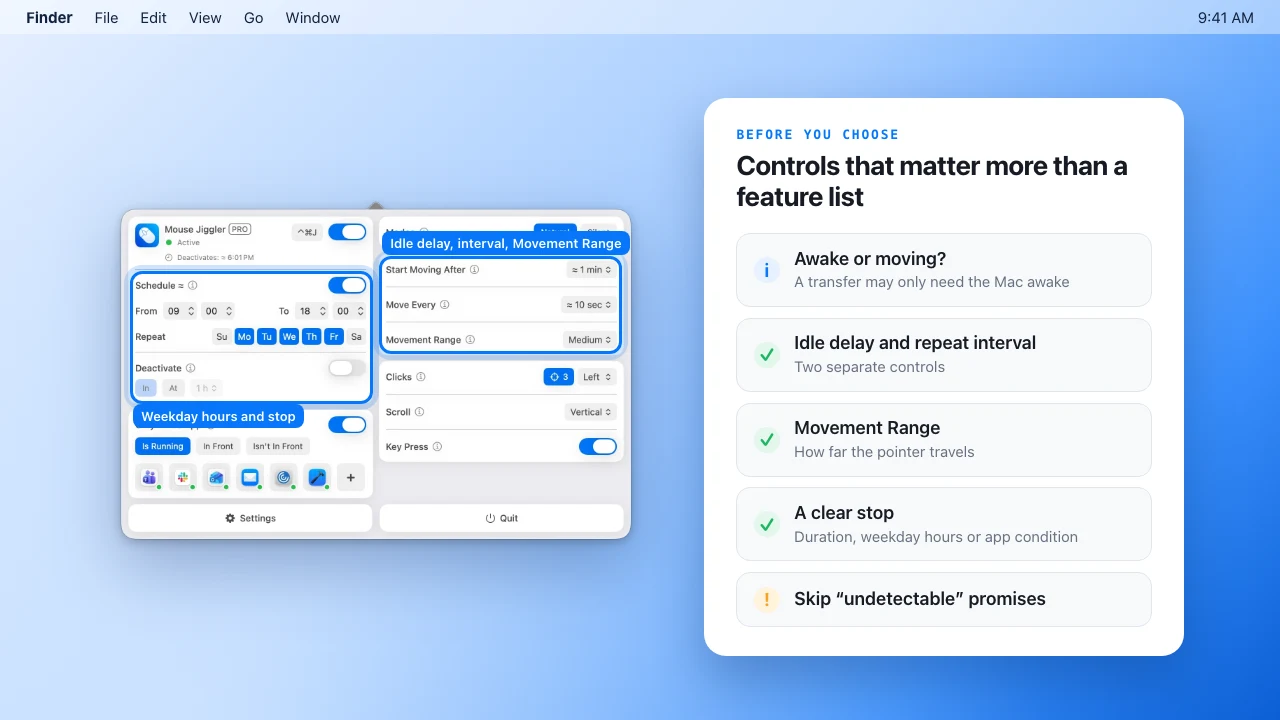
For one local Python job, the command above ties the awake request to the process without another app. For a recurring desk routine involving an editor, browser, and other tools, Mouse Jiggler for Mac offers weekday schedules, cursor timing, and a stop time in the menu bar.
Review Prevent Sleep While Active and the lock and battery conditions for that setup. An app schedule ends at its configured time, independently of whether your Python job has finished. The schedule walkthrough shows how to check a short session first. This website is published by the app’s developer.
For those optional menu-bar controls, download Mouse Jiggler on the Mac App Store and check which features require PRO. The Python commands above work without the app.
Check the script’s result before ending the session.
Review the exit status and the output you expected. For timers or a process already running, use the caffeinate reference.
Review caffeinate commandsView Mouse Jiggler on the Mac App Store · Free to download, with optional PRO features.