
Choose one task and a clear end time. First verify basic movement with clicks and scrolling off and Key Press disabled. Review Movement Range before adding timing rules. Then add a deactivation time or duration, and only add app conditions or a weekday schedule if the task needs them.
Write the session in one sentence
For example: “Keep my reference visible while I review it for the next half hour.” That statement gives you a purpose, a duration, and something observable to check.
It also reveals what you do not need. A one-off reading session may not need a recurring weekday schedule, automatic clicks, or scrolling. Choose controls for the session in front of you rather than enabling everything because it is available.
The examples below use the current menu-bar controls, including Movement Range. Some features require PRO; check the current listing for availability.
If you are setting up the app for the first time, download Mouse Jiggler on the Mac App Store before following this walkthrough. If it is already installed, use your current copy and begin with a short test.
Separate the idle delay from the interval
Start Moving After is the idle wait before movement begins. Move Every is the repeat interval. With a three-minute idle delay, you should not expect immediate movement when the switch turns on.
For a first check, select a delay that gives the app a chance to start before your Mac’s configured idle sleep. Leave the input devices untouched through the delay. If the test is unclear, simplify the conditions before shortening every setting.
Review the new Movement Range control
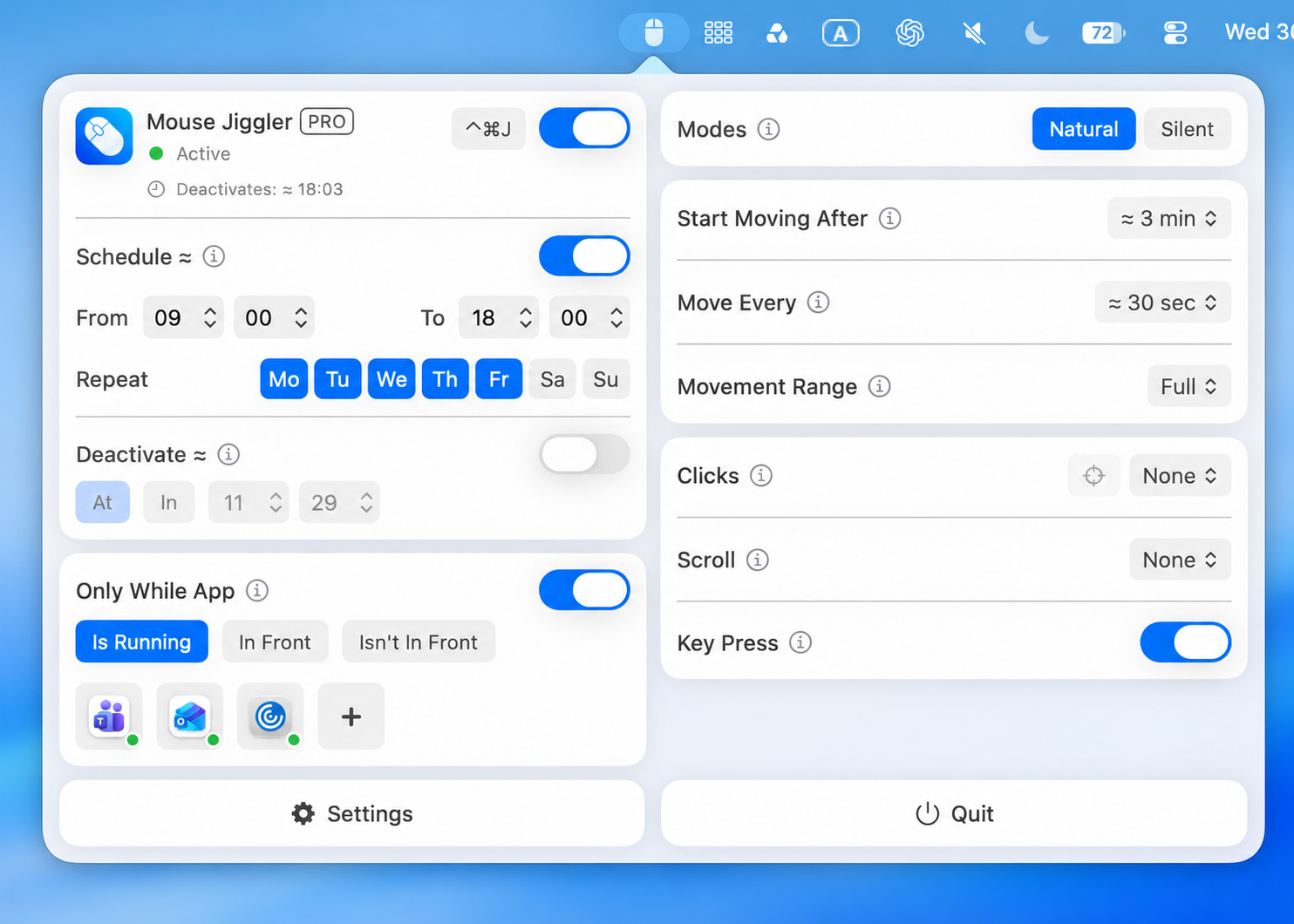
Open Movement Range below Move Every and check the selected range before beginning. Keep the timing unchanged while comparing the range choices available in your app. For the first check, use a blank document, leave Clicks and Scroll at None, and turn Key Press off.
For example, use the displayed three-minute idle delay and 30-second interval, wait through the delay, then observe several movements. Stop the session before adjusting the range. The Movement Range walkthrough explains how to compare one setting at a time.
Give the session an end
Review Deactivate and its At and In choices. Use a clock time when the session has a known deadline, or a duration when you want a limited period from your current setup.
Try a short stop condition and observe its result before depending on a longer session. Note that stopping Mouse Jiggler does not necessarily end another app’s background job. Confirm the actual task separately.
Add an app condition only when it helps
Only While App offers Is Running, In Front, and Isn’t In Front. These describe different situations: an app can be open without being the foreground app.
If you read a document while switching to a notes app, a foreground condition can change during that switch. If your goal is activity only when one particular app is open, a running condition may be the option to investigate. Check your actual app-switching sequence during the test.
Review the boundaries in Settings
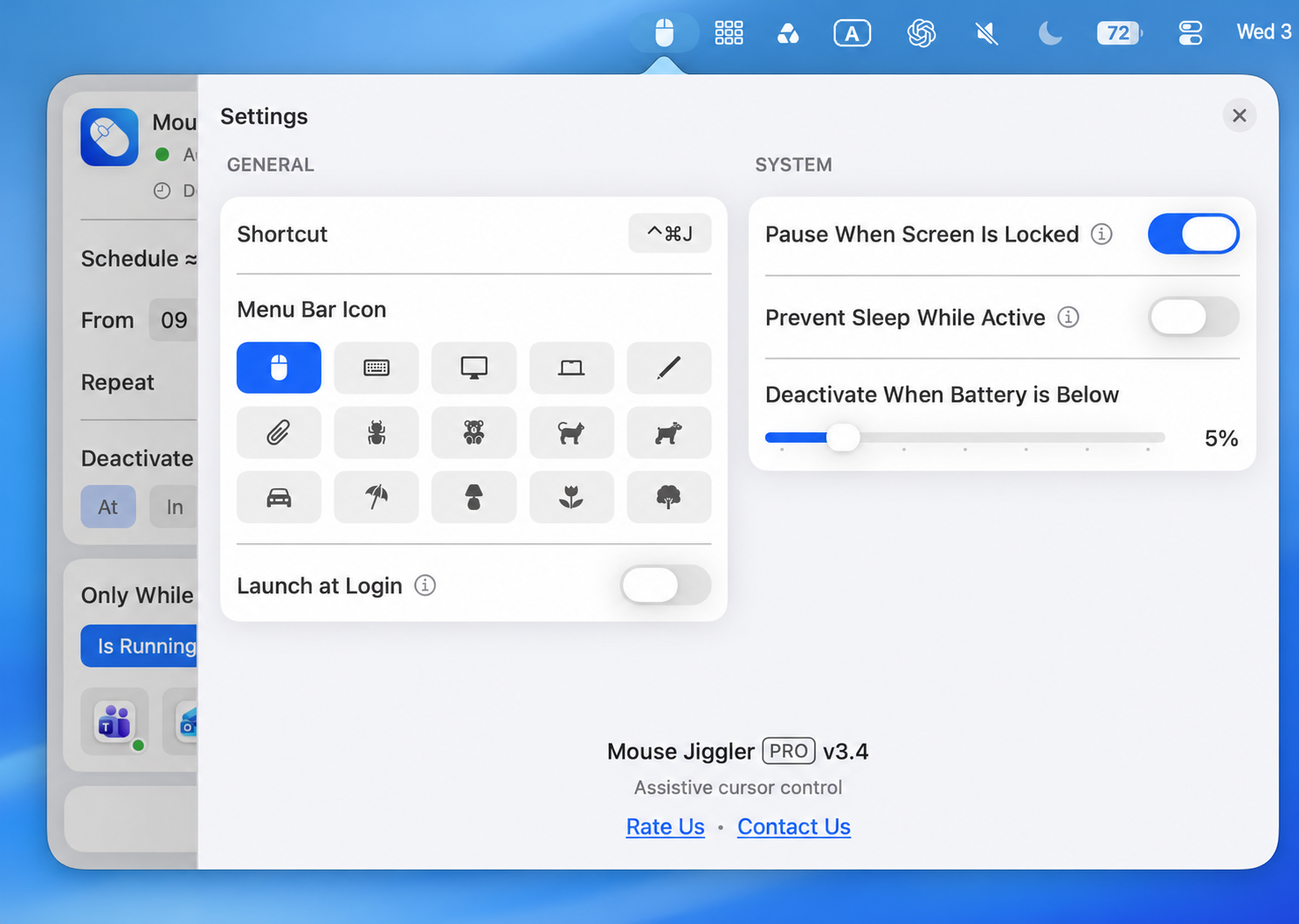
Open Settings at the bottom of the main panel. In General, review your shortcut, menu-bar icon, and Launch at Login. In System, review Pause When Screen Is Locked, Prevent Sleep While Active, and Deactivate When Battery is Below.
The screenshot shows screen-lock pausing on, sleep prevention off, Launch at Login off, and a 5% battery cutoff. Those are the values in this capture, not a recommendation or a statement of the app’s defaults.
For a useful short test, record those settings and observe the task with the Mac awake and its lid open. If you change Prevent Sleep While Active, keep the other settings unchanged and check the actual task afterward. Do not assume a sleep-prevention switch overrides a closed lid or tells you whether a file finished transferring.
Keep Clicks and Scroll set to None and Key Press off for a movement-only session. The movement controls guide explains those separate actions.
Check the whole start-and-stop cycle
- Start while the Mac is awake and the lid is open.
- Wait for the idle delay and observe movement.
- Try any app switch that is part of your planned workflow.
- Wait for the short deactivation condition and confirm the result.
- End the test and restore the desired session length.
For repeating hours, continue with the schedule walkthrough. If a condition prevents movement, use the troubleshooting checklist rather than assuming the app needs reinstalling.
Basic movement works? Add a routine.
Once you have checked a short session and its stop condition, add weekdays or app conditions one at a time.
Set up and test a scheduleView Mouse Jiggler on the Mac App Store · Free to download, with optional PRO features.