For a one-hour session without touching the mouse or keyboard, run caffeinate -i -t 3600 in Terminal. Use -di if the screen must stay on too. For recurring cursor movement, use Mouse Jiggler’s menu-bar controls; for a regular plugged-in preference, use macOS power settings.
First decide what needs to stay awake
“Keep my Mac awake” can mean keeping a screen visible, keeping a background task running, or sending periodic pointer activity. These needs overlap, but the same solution is not always best for all three.
For example, a file transfer may run with the display off as long as the Mac itself remains awake. A dashboard needs a visible display. A remote application may have its own session rules even when the local Mac is active.
Choose by what needs to keep running
| Your situation | Start here | How it ends |
|---|---|---|
| A one-off upload or download | A timed caffeinate -i session | Timeout or Control-C |
| A presentation or reference screen | A timed caffeinate -di session | Timeout or Control-C |
| Recurring cursor movement with app controls | Mouse Jiggler | Main switch or configured stopping condition |
| A regular plugged-in preference | macOS Battery or Energy settings | You restore the setting |
Start with the simplest method that serves the task. A desktop that stays awake and a chat app that shows Available are separate outcomes.
For a talk or screen share, follow the presentation setup guide. If you are working away from a charger, use the battery-powered awake-session checklist.
Method 1: macOS sleep settings
System Settings includes display-off timers in Lock Screen and power-related options in Battery or Energy, depending on your Mac. Apple’s sleep and wake guide explains which controls apply to different models.
This approach suits a recurring preference, such as how your Mac behaves while plugged in at a desk. Note the original values before changing them so you can restore them after a temporary task.
Method 2: a timed caffeinate session
If you prefer not to change a standing preference, open Terminal and run:
caffeinate -i -t 3600This requests one hour without idle system sleep. Use -di when the display also needs to stay on, or press Control-C to stop early. Our caffeinate guide explains timed sessions and command-based usage.
Method 3: a menu-bar mouse jiggler
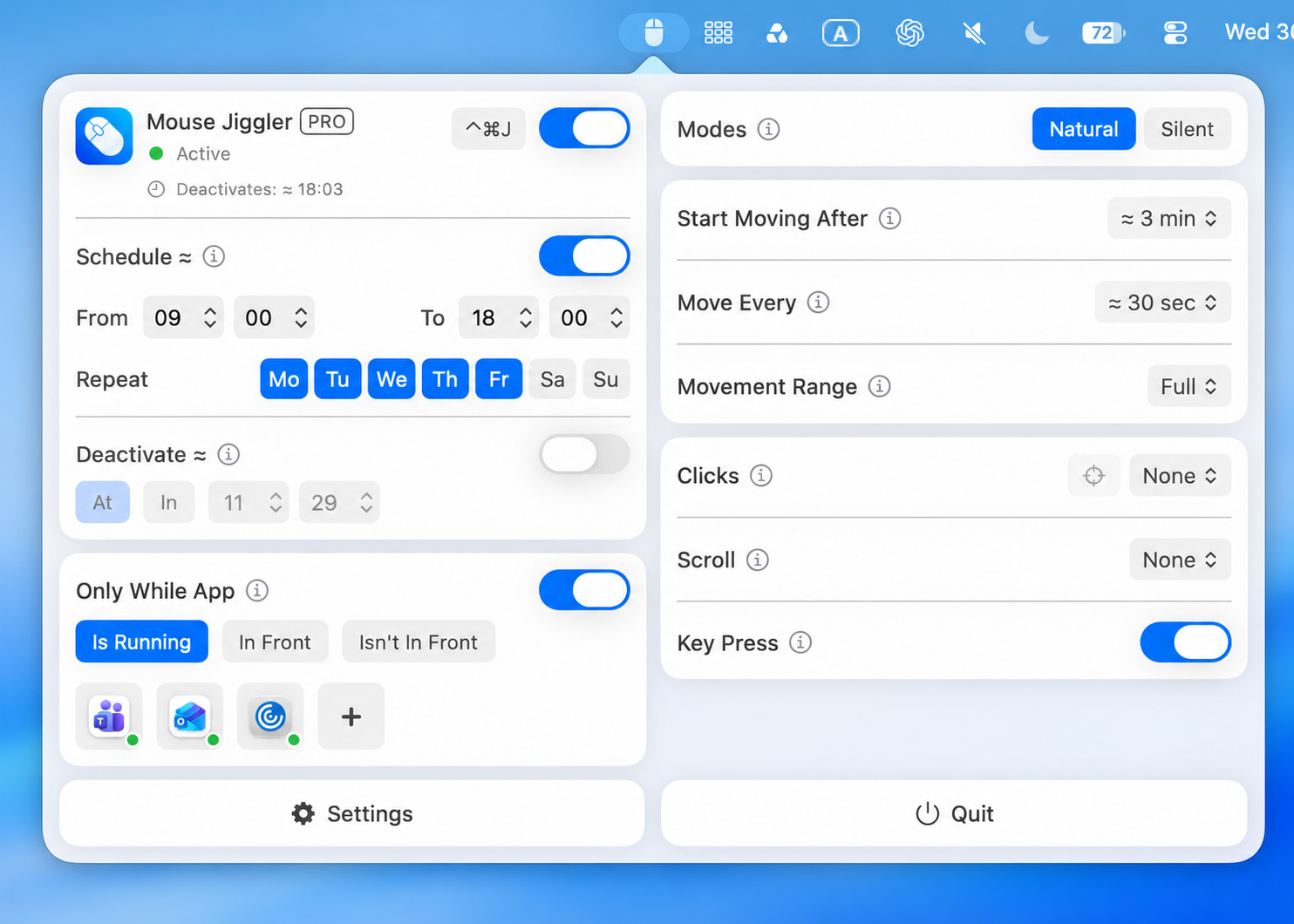
Mouse Jiggler provides configurable cursor movement from the menu bar. You can set a delay before movement, choose a repeat interval, and configure schedules or stop conditions.
It is a useful fit when you want visible controls and recurring input behavior. Start by granting Accessibility permission, then test a simple session before adding conditions. If your goal is to prevent idle sleep, make sure the configured idle delay is shorter than the Mac’s sleep timeout.
Compare the approaches
| Method | Good fit | Remember |
|---|---|---|
| macOS settings | A regular power preference | Restore temporary changes afterward. |
| caffeinate | A timed or command-specific task | It does not move the cursor. |
| Mouse Jiggler | Cursor movement, schedules, app conditions | Input permission and active conditions matter. |
None of these should be treated as a universal way to keep a MacBook running with its lid closed. They also cannot guarantee uninterrupted internet service or a particular status in another application.
Make a session predictable
Use a stop time, keep the Mac ventilated, and plug in for a long task where appropriate. Confirm the actual task is progressing before stepping away. Keeping a Mac awake uses more power than allowing it to sleep.
If your next task is an upload, read our file-transfer checklist. For recurring hours, see how to set a schedule.
Example: read a reference for 30 minutes
If all you need is an illuminated reference screen, run caffeinate -di -t 1800. Keep the lid open and leave the Terminal session running. When you finish, press Control-C or allow the 30-minute timeout to end the request.
If you prefer a mouse mover, install Mouse Jiggler, check Accessibility access, and begin with Natural mode, Clicks None, Scroll None, and Key Press off. Review Movement Range before starting. Wait through the configured idle delay before judging the result. Add a stop time after basic movement is working.
Example: repeat an afternoon work session
For repeated sessions, follow the schedule walkthrough. Verify a short window first, then choose the working hours and repeat days that suit your routine. Use the troubleshooting checklist if the pointer does not move.
Make your next session simpler.
Explore Mouse Jiggler’s menu-bar movement, timing, and scheduling controls.
Download for Mac