To keep a Mac available for Screen Sharing, prevent idle sleep on the Mac you want to control—the host. For a temporary session, run caffeinate -i -t 7200 in Terminal on that Mac. Keep both Macs awake during the connection, and check sharing permissions and the network separately. Keeping only your viewing Mac awake does not keep the remote Mac awake.
First, identify the host and the viewer
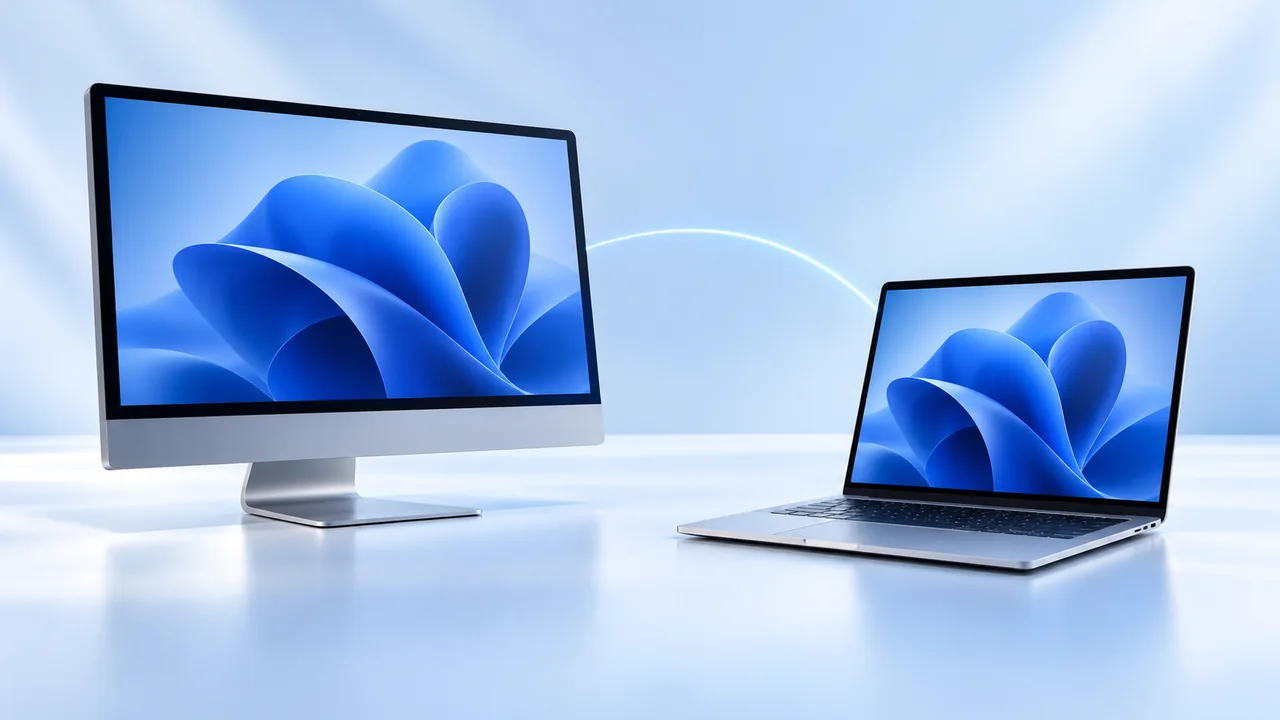
Imagine a Mac mini in your office and a MacBook at your desk. When you open the Mac mini’s desktop on the MacBook, the Mac mini is the host and the MacBook is the viewer. Settings changed on the MacBook do not automatically change the Mac mini.
This guide covers Apple’s built-in Screen Sharing between Macs on the same network. It is different from presenting a window in a video meeting; for that, use our presentation guide. Apple’s Screen Sharing troubleshooting checklist says to check that neither Mac is asleep, that sharing access is allowed, and that both computers are on the same network.
| Computer | What to prepare | What that does not do |
|---|---|---|
| Host: the Mac being controlled | Sharing access, a working network connection, and an awake session | It does not keep the viewer’s Mac awake. |
| Viewer: the Mac in front of you | Screen Sharing connection and enough awake time for your session | It does not change the host’s sleep preferences. |
A dark display alone is not evidence that the computer has entered system sleep. See the difference between display sleep, system sleep, and locking before changing several settings at once.
Prepare sharing on the host before you leave it
- On the host, open System Settings → General → Sharing and open the information control beside Screen Sharing.
- Enable Screen Sharing. Under Allow access for, choose Only these users and add the account that needs access.
- On the viewer, open Screen Sharing from Applications → Utilities. Select Network, choose the host, and connect with an allowed account.
- Confirm that you can open a harmless Finder window on the host. Resolve login or access errors now, while you can still reach both computers.
Apple documents the sharing controls and the connection steps. Screen Sharing and Remote Management cannot both be enabled at once. If an administrator already manages the host through Remote Management, ask them which connection method to use before changing it.
Choose a temporary timer or a regular power setting
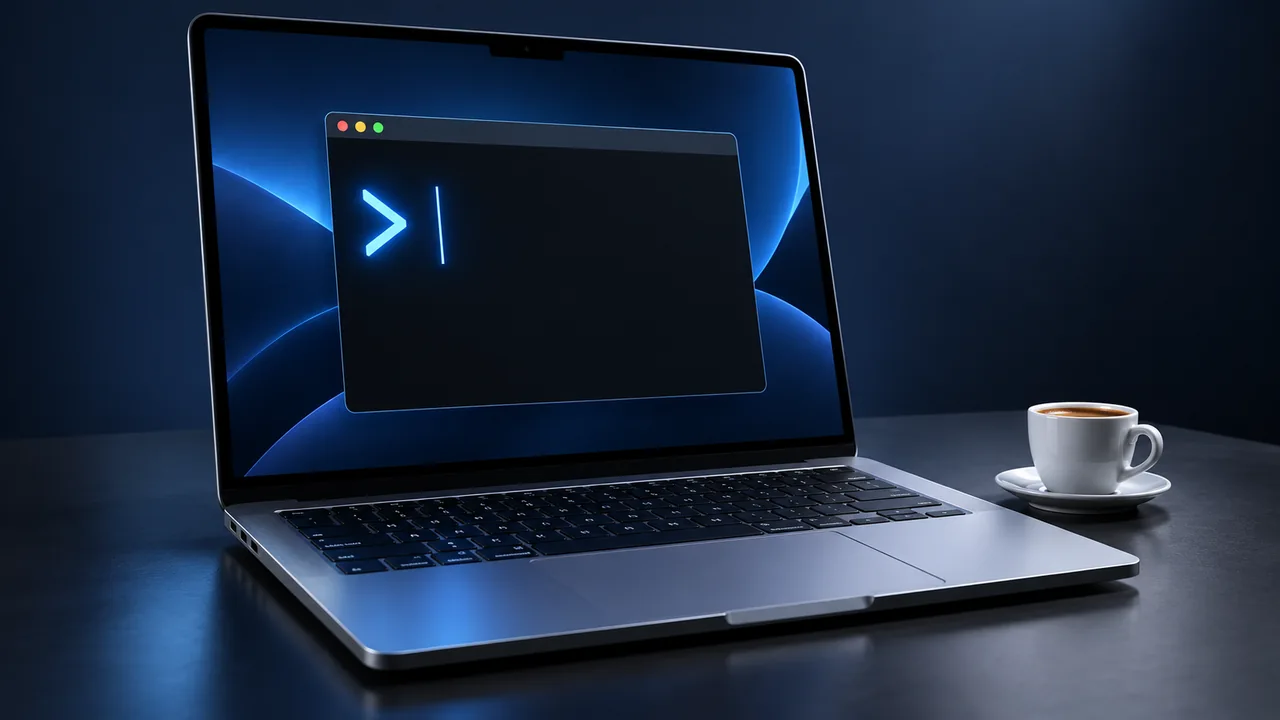
For a two-hour session, open Terminal on the host and run:
caffeinate -i -t 7200Leave that Terminal session running. It requests protection from idle system sleep for 7,200 seconds; it does not require the physical display to stay lit. The timer starts immediately and does not extend itself when you reconnect. Stop it early with Control-C in that Terminal window. Apple’s command reference documents the idle-sleep request and timeout.
If you enter the command through an existing Screen Sharing connection, make sure the Terminal window belongs to the remote desktop. For other durations and ways to inspect the request, see our caffeinate guide. You can use a separate timer on the viewer if it also needs one.
For a host you regularly use remotely while plugged in, a persistent preference may be easier. On a laptop, look in System Settings → Battery → Options for the control that prevents automatic sleep on power when the display is off. On a desktop Mac, look under System Settings → Energy. Availability varies by model. Note the previous setting so you can restore it later; Apple’s sleep settings guide also notes the extra power use.
Start with one method so the result is easier to interpret. Keep a MacBook host connected to power with its lid open. An idle-sleep request does not override a shutdown or make a closed-lid setup suitable; check our closed-lid guide if that is your intended arrangement.
Test a return visit, not only the first connection
Here is a practical trial for the Mac mini and MacBook example. This is a suggested checklist, not a report of a completed two-Mac test.
- At 14:00, start the two-hour timer on the Mac mini and connect from the MacBook. The timer will end around 16:00.
- At 14:05, open Window → Connections → All Connections in Screen Sharing, move the pointer over the active session, and click Disconnect. Leave the host’s Terminal session running; do not choose Sleep or shut down the host.
- At 14:20, reconnect from the same network using the same account. Check that you can interact with the host, rather than relying on a previously displayed image.
- Record whether reconnection worked, whether someone had to wake the host locally, and any exact error message. If it failed, work through the table below before changing the sleep method.
- Finish before 16:00, or deliberately extend the awake window. Restore a standing power preference when you no longer need it.
The disconnect steps are documented in Apple’s Screen Sharing guide. Keep your usual password protection. If you intend to reconnect while the host is locked, include that exact condition in a separate short trial; a successful unlocked connection does not establish what happens behind the lock screen. Our locked-Mac guide explains the sleep side of that setup.
Should you use Wake for network access?
Apple describes Wake for network access as a way for a sleeping Mac to wake for shared resources. It is available in Battery → Options on supported laptops and Energy settings on desktop Macs. Apple’s resource-sharing documentation includes network equipment requirements.
That is a different approach from keeping the host awake throughout a timed window. Do not assume enabling it guarantees that your particular remote connection will work after sleep. Test the wake-and-reconnect path with your actual Mac and network while someone can still reach the host. A working same-network trial also does not prove access will work from a different network or through an organization’s VPN.
If Screen Sharing still disconnects
| Observation | Next useful check |
|---|---|
| Connection fails while both Macs are visibly awake | Check the host’s allowed-user list and both network connections. A longer sleep timer will not correct a wrong account or network. |
| It reconnects only after someone wakes the host | Check that the awake method was set on the host and was still active. Repeat the same short trial with the timer running. |
| The viewer sleeps and its window stops updating | Wake the viewer and reconnect. Investigate its sleep settings separately before changing the host. |
| The host’s screen goes dark but remote control works | The session is still usable. Display darkness by itself does not require a fix. |
| It fails after a restart | Check the host locally. A temporary Terminal command is not a startup service and does not establish access through a restart. |
| It fails after changing networks | Repeat the known-working same-network test. Ask your network administrator about approved remote access if this is a managed setup. |
Keep a short note of the host, viewer, connection time, power source, timer end time, and exact failure. Change one variable for the next trial. This makes a useful troubleshooting record without assuming every disconnect is caused by sleep.
What we checked, and where Mouse Jiggler fits
On October 12, 2026, we checked the command locally on macOS 27.0.1. A three-second caffeinate -i -t 3 session created an idle-system-sleep assertion and released it when the timer ended. A second session released its assertion after SIGINT, the signal normally sent by Control-C. We did not perform a two-Mac connection test, a remote wake test, or an unattended sleep cycle.
Mouse Jiggler for Mac offers menu-bar session controls and a separate Prevent Sleep While Active setting. If you use it on a host, check its stop conditions and lock-screen behavior in our session settings guide, then repeat the reconnection trial. It does not configure Screen Sharing accounts or network access. Automatic clicks, scrolling, and key presses are unnecessary for the setup above and could interfere with the remote work.
Make your next session simpler.
Explore Mouse Jiggler’s menu-bar movement, timing, and scheduling controls.
Download for Mac