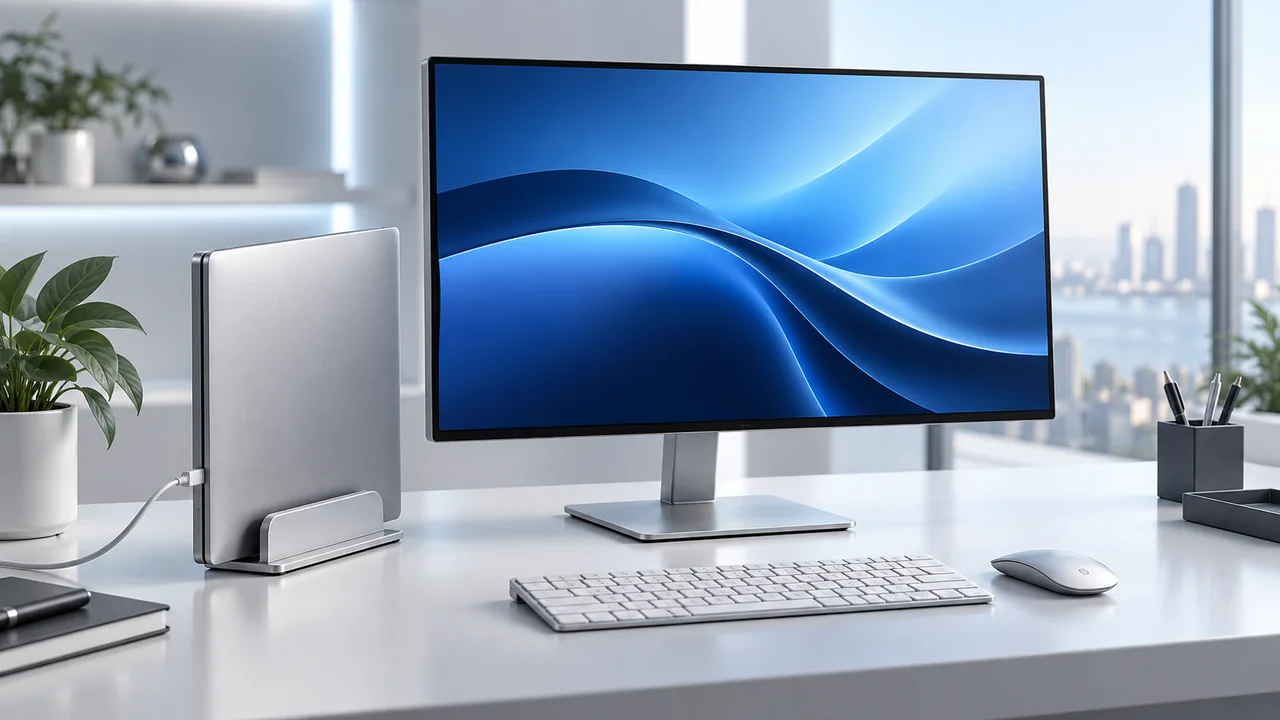
Use a supported external-display setup with power and external input devices. Do not assume Mouse Jiggler or caffeinate can override closing the lid. For an ordinary laptop-only task, leave the lid open.
Start with the hardware setup
A closed-lid desktop setup has a different purpose from leaving a laptop alone during a download. You are replacing the built-in screen and input devices with external ones, so those connections must work before sleep settings become relevant.
Apple’s external-display troubleshooting guidance calls for a power connection and an external keyboard and mouse when using a laptop with its lid closed. The number of displays and supported resolutions vary by Mac model. Check your model’s specifications rather than borrowing a setup recipe for a different chip.
Connect everything with the lid open
- Connect an appropriate power source and the external display.
- Connect the external keyboard and mouse or trackpad.
- Unlock the Mac and respond to any expected accessory-approval prompt.
- Confirm that the external display shows the desktop and the input devices work.
- Then close the lid and check the external workspace again.
Apple silicon laptops can require approval for accessories. Complete the normal approval process while the built-in screen is available. A display that has not been allowed to connect can stay dark even when the cable is attached.
Before starting important work, try opening an application, typing a short note, and moving the pointer using only the external devices. This catches a missing connection while recovery is easy.
If the external screen goes dark
First reopen the lid and check whether the Mac itself is responding. Then inspect power, the selected display input, and the video connection. If a dock is involved, a direct display connection can help isolate that part of the setup.
Note exactly when the image disappears: on closing the lid, when connecting another display, or after a period without input. Those are different triggers. Increasing a sleep timeout will not fix an unsupported display configuration.
Use System Settings → Displays to review the detected displays. Keep a short record of the Mac model, macOS version, display, cable, and dock; it is much easier to get useful support with the complete connection chain.
What an awake utility can and cannot do
Mouse Jiggler provides automated cursor movement. The built-in caffeinate command requests that macOS prevent particular forms of sleep. Neither should be treated as a guarantee that a laptop-only workflow continues after the lid closes.
If your goal is simply to finish an upload with no external screen, the straightforward setup is to leave the lid open, choose a timed awake session, and check completion. See the transfer checklist.
For a separate cursor-movement routine with the lid open, you can download Mouse Jiggler on the Mac App Store. It is not a way to bypass the closed-lid requirements described above.
Test the transition you actually use
A working desk setup is only one part of the routine. When a task has finished, test what happens when you reconnect the built-in screen or unplug the dock. Save your work first and confirm that the windows and input devices remain usable.
Keep ordinary sleep and locking behavior outside the planned session. If you need recurring activity while working at the desk, add a schedule only after the external-display setup works consistently.
Finishing a transfer with the lid open?
Use a timed awake session and confirm the transfer completes. Keep the external-display requirements separate from that workflow.
Open the file-transfer checklistView Mouse Jiggler on the Mac App Store · Free to download, with optional PRO features.