Give the session an end time, keep the display on only when you need it, and review the battery cutoff in Mouse Jiggler. No awake method removes the energy cost of keeping the Mac active.
Define the smallest useful session
Start with the work you need to finish: a reference visible for a workshop, a short export, or a transfer before leaving the desk. Estimate the duration and decide whether the screen must remain readable throughout.
For a task that can finish in the background, an illuminated display may add no value. A timed system-sleep request can suit that case better than continuous pointer activity. For a visible reference, screen brightness and the session length both deserve attention.
Apple notes that preventing or delaying sleep can increase power consumption. There is no universal battery-life figure for an awake utility: the screen, workload, model, and battery condition all affect the result.
Choose a clear stopping point
For a half-hour background session, the built-in command is:
caffeinate -i -t 1800It requests that idle system sleep be prevented for 1,800 seconds. It does not promise that a heavy job will finish before the battery runs down. Check progress and remaining charge during the session, and stop early with Control-C if the work finishes.
If you prefer Mouse Jiggler, use its Deactivate control to choose a duration or stop time. Check that a separate weekday schedule does not conflict with your intended session. See the scheduling walkthrough.
Review the battery cutoff
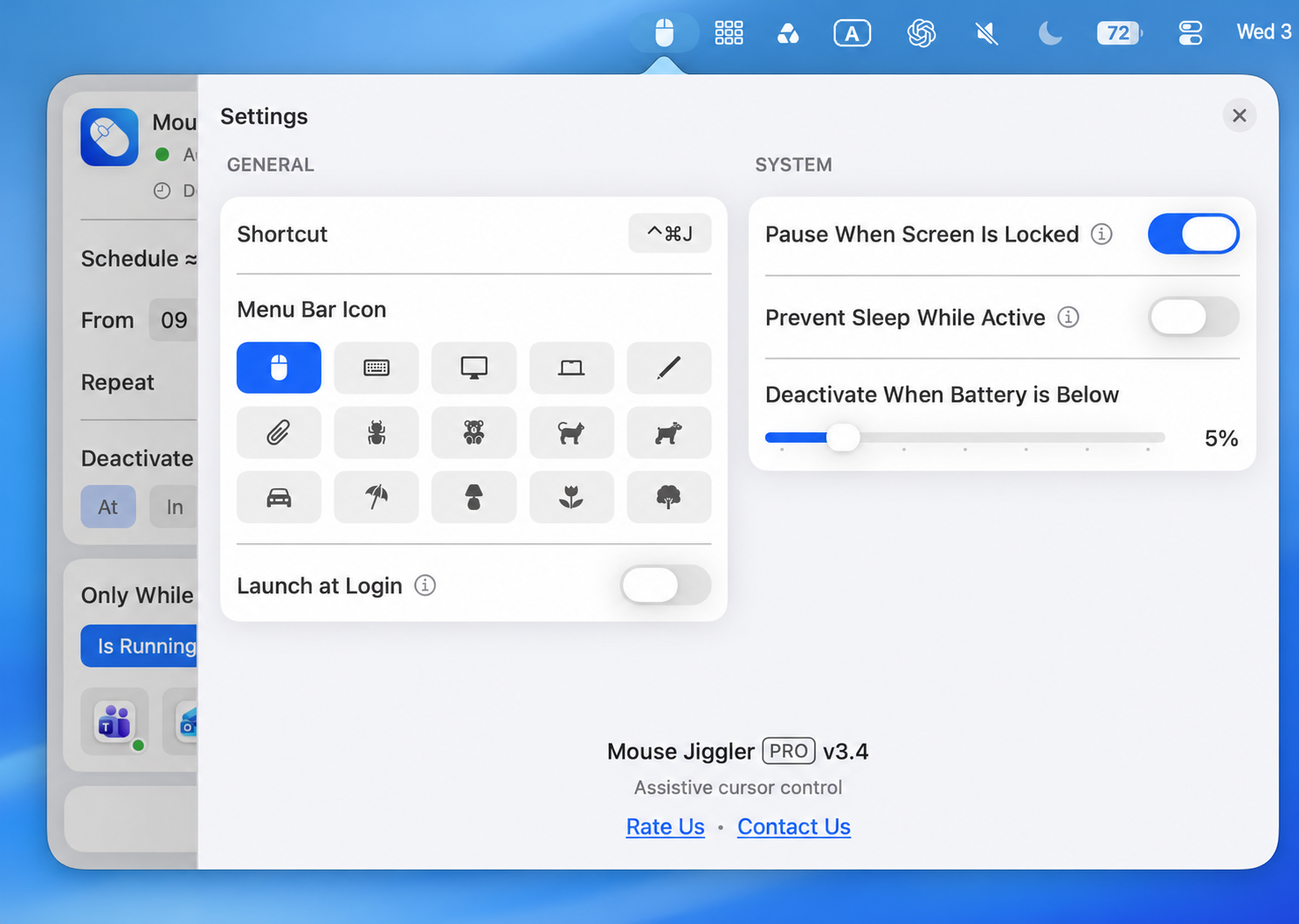
Mouse Jiggler Settings includes Deactivate When Battery is Below. Choose a threshold that leaves enough charge for what you need afterward, then confirm the selected threshold before starting. The value shown in this screenshot is an example, not a recommendation.
In version 3.4, the same System section also includes Prevent Sleep While Active. Check its state before comparing battery use between sessions. A cutoff stops the app’s activity; it does not guarantee that another application will stop its workload or that macOS will immediately sleep. Check the task and the system separately.
To use these menu-bar controls, download Mouse Jiggler on the Mac App Store. Check the listing for optional PRO features before choosing your setup.
Use macOS energy controls thoughtfully
Apple recommends reducing display brightness to a comfortable level, and supported Macs provide Low Power Mode to reduce energy use. Availability and the effect on your workload depend on the Mac and its settings.
For a demanding export, test the combination you intend to use rather than assuming a lower-power mode and the same completion time. Keeping a computer awake cannot compensate for insufficient charge.
For long or unpredictable work, use a suitable power source where available. If you switch between battery and adapter during a session, check that the display and sleep settings still match the plan.
Check which app is using energy now
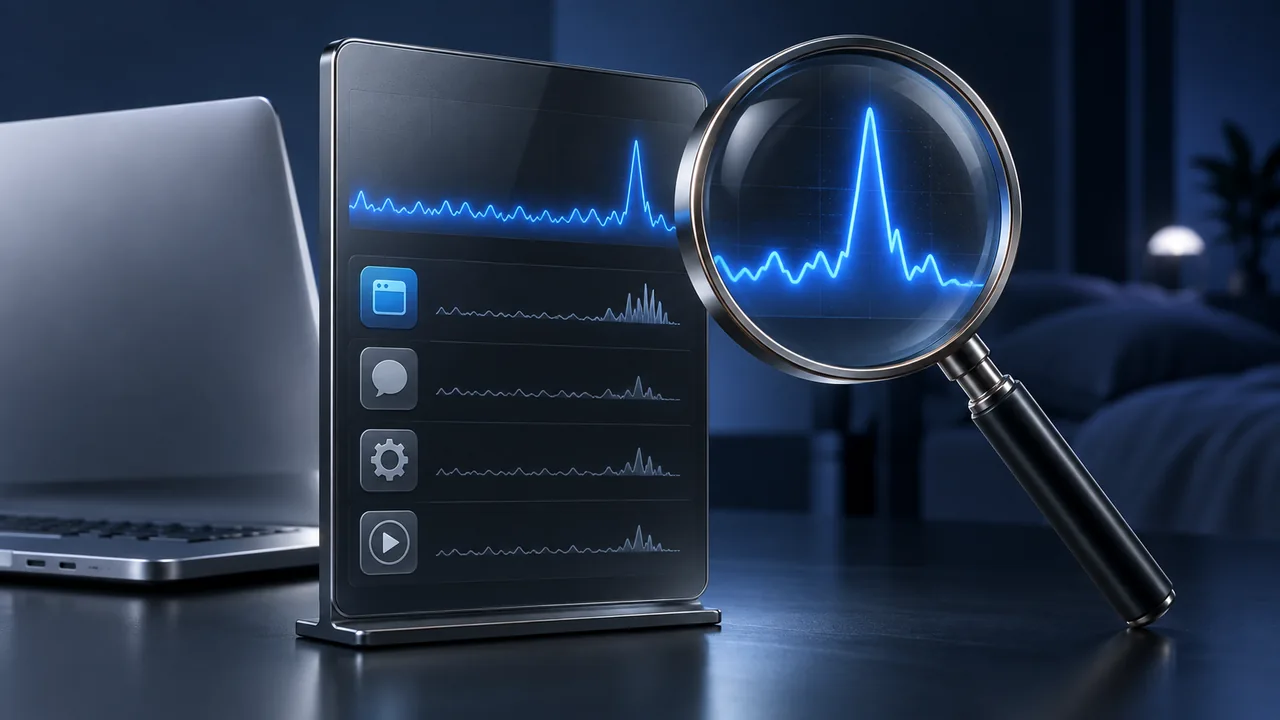
Open Activity Monitor on your Mac and choose Energy. Keep the task you are supervising running, then compare its entry with the awake utility. Watch more than one reading as the task progresses.
| Column | How to read it |
|---|---|
| Energy Impact | A relative measure of current consumption; a lower value means less energy use. It is not the percentage of battery the app has used. |
| 12 hr Power | On Mac laptops, an average over the previous 12 hours, or since startup. Earlier work can affect this number, so it is not a result for your new ten-minute session. |
| Preventing Sleep | Whether an app is preventing sleep. This answers a different question from how much energy it is using. |
Apple documents these columns in its Activity Monitor energy guide. If the task has finished but the Mac stays awake, follow the sleep-prevention troubleshooting steps before changing movement settings.
Try a ten-minute battery observation
Use a short, ordinary task to make a record you can compare later. Do not start with an important unattended export or a nearly empty battery.
- Save your work. Keep the laptop open and on battery for the observation. Note the task, display brightness, power mode, and awake-session settings.
- Record the time and charge level. Start a ten-minute awake session using the timer method above or Mouse Jiggler’s Deactivate control. Keep normal lock requirements in place.
- Check Energy Impact at a few points, noting which app is busy. Leave the workload and brightness unchanged; record any interruption such as a call or background update.
- After ten minutes, record the charge again and check the task’s progress. Stop the awake session when it is no longer needed. Save the notes before trying a different setting.
| Example record | Illustrative value |
|---|---|
| Time and charge at the start | 10:00 · 70% |
| Time and charge at the end | 10:10 · 67% |
| Observed change | 3 percentage points over ten minutes |
| Context to record | Task, brightness, power mode, awake method, and interruptions |
These numbers are an example, not measurements from our app. The change covers the whole Mac, so it does not show how much one utility consumed. Do not turn a short observation into a remaining-hours promise. For a useful comparison, repeat a similar workload and duration with only one deliberate setting change; a different export or a brighter display makes the comparison less informative.
Separate remaining charge from battery condition
The charge percentage tells you how full the battery is now. To check its condition, open Apple menu → System Settings → Battery and look at Battery Health. Apple distinguishes Normal from Service Recommended; the latter can mean reduced charge capacity or a battery that is not functioning normally. See Apple’s battery-condition guidance for next steps.
Keep that information with your session notes. It helps explain why the same task may behave differently on two laptops, without assuming that a sleep setting or awake utility is responsible.
Check the result and restore the routine
- Confirm that the task actually completed.
- Stop the awake session if its timer is still running.
- Review the remaining charge and normal display timeout.
- Keep a note of the duration and workload if you will repeat the task.
If the Mac continues to stay awake after the session ends, use Activity Monitor and the power-assertion check. If it stops earlier than expected, review the battery threshold, screen-lock pause, and app conditions before treating the result as a fault.
Make your next session simpler.
Explore Mouse Jiggler’s menu-bar movement, timing, and scheduling controls.
Download for Mac