Choose a USB mouse jiggler when a compatible plug-in input device fits your setup. A mechanical mover works beneath a physical mouse. A Mac app is useful when you want movement settings and schedules in your menu bar. If you only need to prevent sleep, start by checking whether macOS settings or caffeinate already meet your needs.
Three types of mouse mover
The phrase “mouse jiggler” describes several different approaches. Before comparing prices, identify what the tool actually does and what you want to keep running: your screen, a background task, or cursor movement.
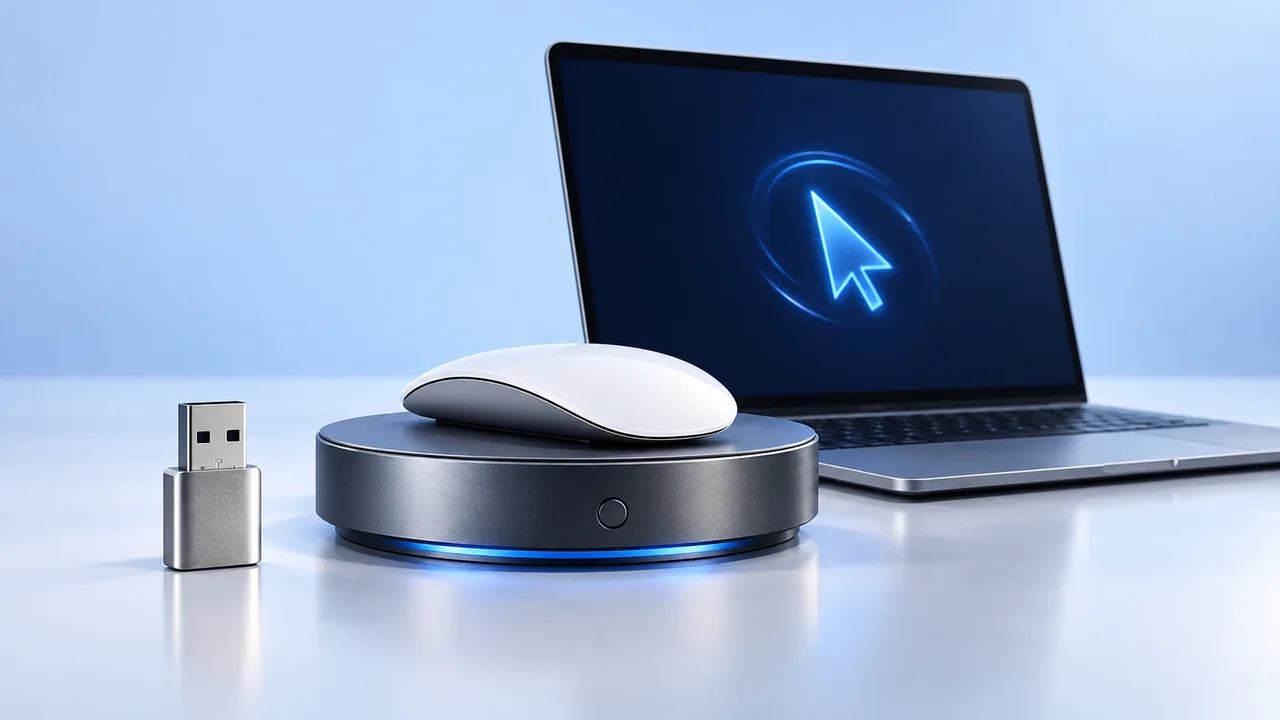
A USB mouse jiggler connects to the computer and sends input. A mechanical mouse mover sits beneath an existing mouse. A mouse jiggler app runs on the Mac and provides software controls. A USB power cable on a mechanical platform does not necessarily mean it sends input over USB.
This is a comparison of approaches, written by the team behind Mouse Jiggler for Mac. It is not a hands-on ranking of hardware products.
USB mouse jigglers: check the connector and controls
A plug-in jiggler can present itself as a USB mouse. For example, Keelog’s AirDrive documentation describes a USB device recognized by macOS as an input peripheral. That is different from a USB drive containing an installer.
Check the exact model’s supported operating systems, USB-A or USB-C connector, movement controls, and stop button. If an adapter or dock is needed, confirm support with the manufacturer. A compact dongle may suit a portable setup, but do not assume every model includes scheduling or the same movement pattern.
Ask how you will end a session before buying: a physical switch, unplugging the device, or a built-in timer are different everyday experiences.
Mechanical mouse movers: allow space for your mouse
A mechanical platform changes the surface beneath the mouse’s sensor. Vaydeer’s single-turntable instructions, for example, tell users to position the sensor over the spinning wheel. This needs a separate physical mouse; a MacBook’s built-in trackpad cannot sit on the platform.
Check the fit of your mouse, the platform’s power requirements, its start and stop controls, and whether its motion suits your setup. You will also need somewhere to put the mouse when you return to using it. Product photos alone do not establish compatibility with your exact sensor.
Mac apps: movement with timing controls
A native app keeps the controls on the Mac. Mouse Jiggler’s interface includes an idle delay, a movement interval, weekday schedules, deactivation controls, and conditions for selected apps. Some controls require PRO; see the Mac App Store listing for current availability and compatibility.
Automatic input requires the relevant macOS permission. Our Accessibility setup guide explains the app’s setup. For recurring sessions, follow the scheduling guide and check both the start and stop behavior.
The tradeoff is straightforward: software offers controls without another desk accessory, but it still needs installation, permission, and a compatible Mac.
Choose for the task you actually have
- Reading or supervising a dashboard: decide whether you need the display awake or actual pointer movement.
- A timed background task: consider macOS caffeinate before buying hardware.
- Recurring hours and app conditions: compare the scheduling controls offered by the app or device.
- A shared or managed Mac: check which applications and peripherals are allowed.
Screen sleep, system sleep, and screen lock are different states. Our sleep and lock guide explains which one to investigate. None of these product categories should be assumed to override closing a MacBook’s lid.
Is an undetectable mouse jiggler a useful promise?
Do not treat “undetectable” as a guarantee. A USB input device, a mechanical platform, and an installed app interact with a computer differently, but those differences do not establish invisibility to every system or observation method.
Choose based on controls, compatibility, and an allowed use. Keeping a Mac awake also does not guarantee a particular Teams or Zoom presence status.
Check your first session
- Keep the MacBook lid open and use the power source you normally use.
- Start a short session with one awake method enabled, so the result is easy to interpret.
- Observe whether the pointer moves, the display stays on, and the task continues as intended.
- Stop the session and confirm you have normal control again.
If you are considering a website instead of hardware or an installed app, read what an online mouse jiggler can and cannot do.
Before choosing a device, check Mac USB ports, adapters, and hub compatibility. If a listing promises invisibility, read what “undetectable mouse jiggler” claims do and do not establish.
Make your next session simpler.
Explore Mouse Jiggler’s menu-bar movement, timing, and scheduling controls.
Download for Mac