Match the device’s connector and documented Mac support first. For a USB input jiggler, check whether macOS recognizes the device, then test movement. A mechanical platform that only uses USB for power needs a different check.
Identify the USB connection you actually need
Start with the model number and its manual. A USB input dongle sends movement to the computer; a mechanical platform may use a USB cable only for electricity. Both can be sold as a “mouse jiggler USB” device, but a connection test means something different for each.
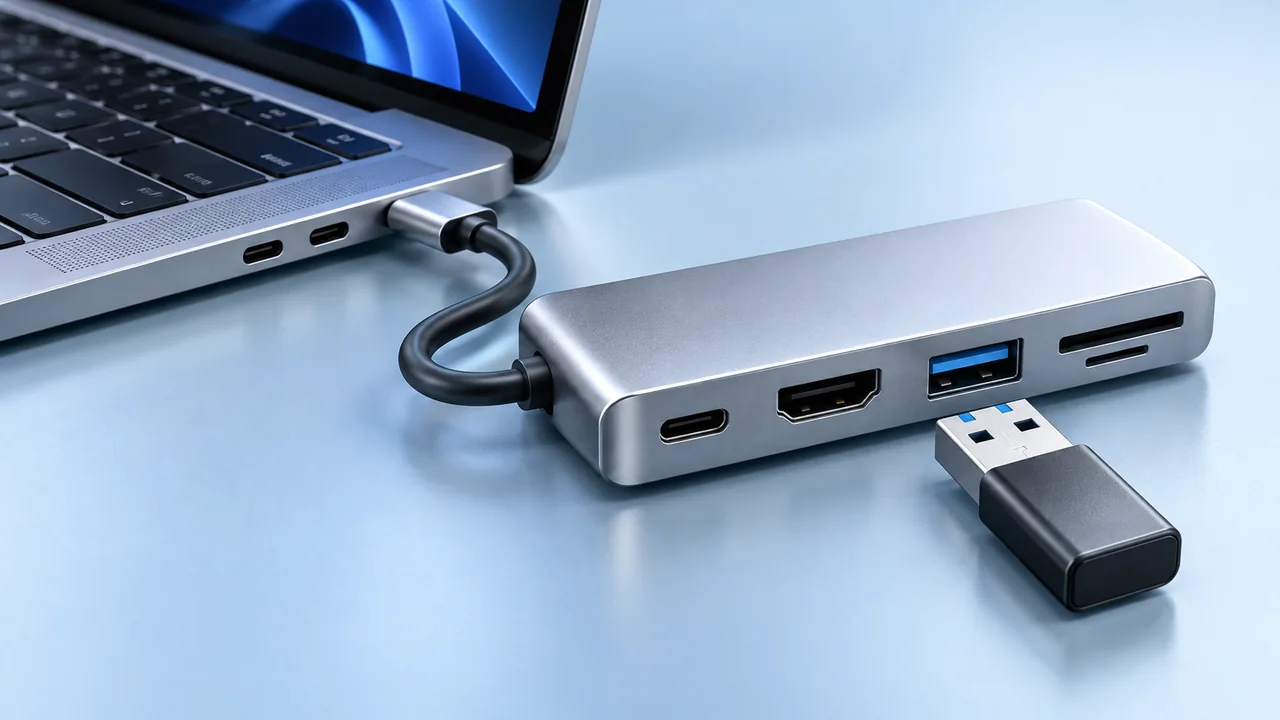
For a dongle, check the plug type and the Mac’s available ports. If they differ, choose a compatible adapter that supports USB data. For a platform, use the power source specified by its manufacturer. Do not assume a power light proves that an input connection is working.
Begin with the shortest supported connection
A chain of docks and adapters makes a fault harder to locate. Start with a direct connection where possible, or one required, supported adapter. Check the device’s instructions before assuming a hub is supported.
Apple recommends trying a direct connection when a USB device attached through a hub is not working. If macOS reports USB Devices Disabled or a power problem, follow Apple’s connection and power checks instead of changing the jiggler’s movement interval.
Do not disconnect storage or other accessories in the middle of an active transfer merely to simplify the setup. Finish that work first.
Check recognition separately from movement
- Connect the USB input device using the supported arrangement.
- Hold Option while opening the Apple menu, then choose System Information.
- Inspect the USB hardware section for the connected device.
- Compare the reported identity with the manufacturer’s documentation.
Recognition helps establish that the Mac sees a device; it does not prove that its movement mode is enabled. Conversely, a power-only mechanical platform should not be diagnosed as missing USB input hardware.
Test one change at a time
If the Mac recognizes a dongle but the pointer stays still, check its physical switch and documented mode. Observe through a full movement interval without touching the mouse. Then change one setting or connection and repeat.
For a mechanical mover, check that your mouse sensor is positioned over the moving surface as instructed. Confirm the mouse itself works normally on the desk. A working motor and a working optical tracking arrangement are separate checks.
Record the Mac model, macOS version, jiggler model, adapter or hub, and observed result. This gives the manufacturer a reproducible setup to investigate.
Choose another approach when the connection adds friction
If the required adapter occupies a port you need, or a desk platform is inconvenient, compare a native app’s controls with the hardware approach. Our USB mouse jiggler vs Mac app guide explains those tradeoffs.
If a native app is already installed and does not move the pointer, follow the app troubleshooting guide. USB recognition checks will not diagnose software permissions.
If you prefer an installed app instead of a USB accessory, download Mouse Jiggler on the Mac App Store for menu-bar movement and timing controls. It does not repair or configure an attached USB device.
Would a different type of mover fit better?
Compare a USB device, a mechanical mover, and a Mac app before buying another adapter or changing your desk setup.
Compare hardware and Mac appsView Mouse Jiggler on the Mac App Store · Free to download, with optional PRO features.